Save and Publish a lesson
In this article, you will learn how to:
Save and publish a lesson
You can only publish an exploration that follows a clear logical path. If you’re having trouble publishing your lesson, there’s likely an issue with one or more cards.
To save and publish in the Exploration Editor:
Select Save Draft above the Exploration Editor navigation bar to ensure you publish the most up-to-date version.
Select Publish above the Exploration Editor navigation bar. * Add additional details about your exploration such as a goal, a category, tags, etc.
Select Save Changes.
Your lesson is now live on the Oppia platform. You can view or share the exploration.
Note: Your exploration ID is the letters and numbers that appear after “/explore/.”
Navigate publishing issues
If the option to publish is greyed out, there is an unresolved structure or logic issue. In the Exploration Editor panel, review each card’s warning icon. It will highlight issues like:
Isolated cards (cards not connected to the main path)
Interactions that loop indefinitely
Once you’ve resolved the lesson’s functionality issues, the Publish button turns green, indicating that you can now publish your exploration.
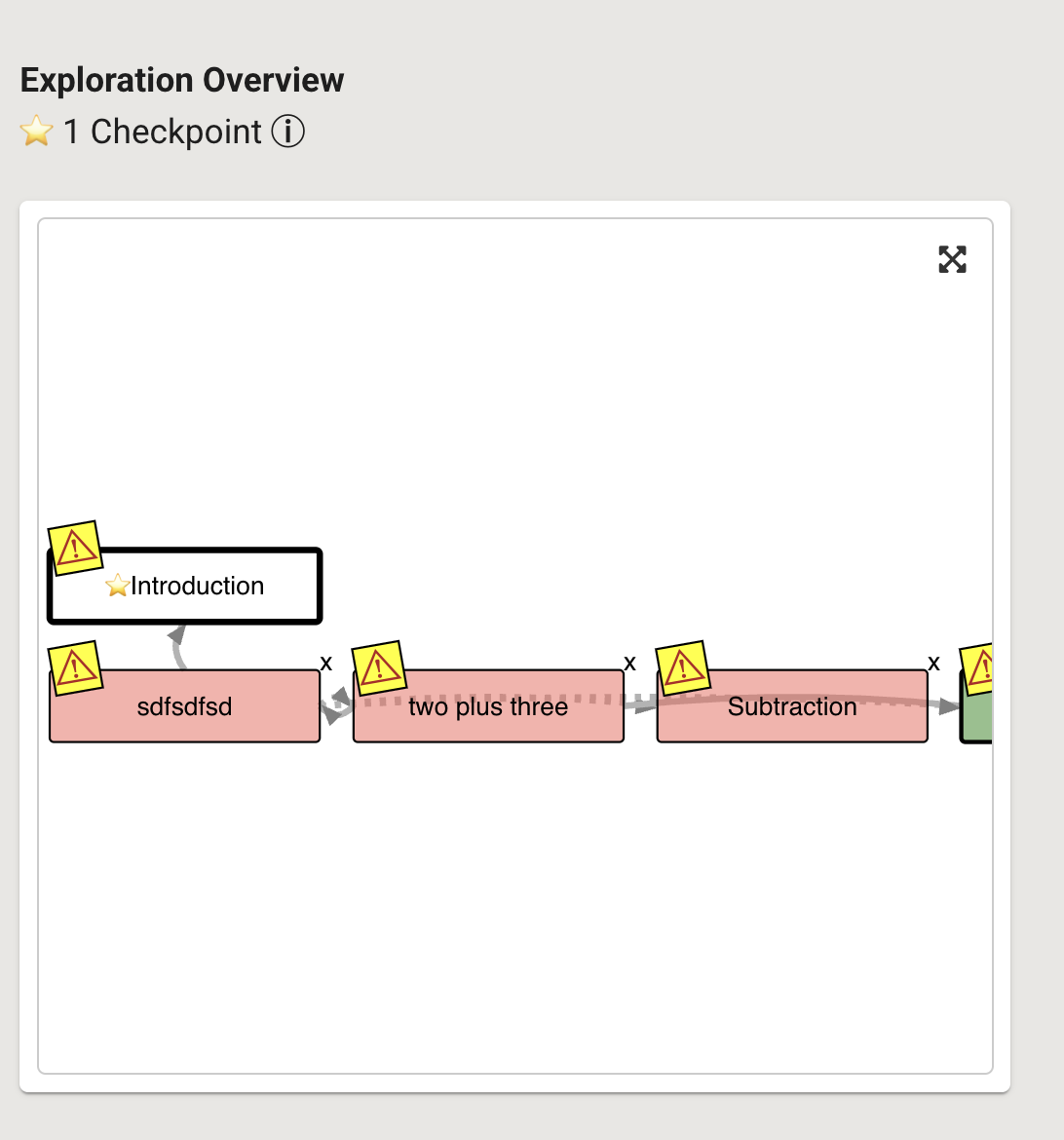
Fig. 1. Exploration Overview panel with card errors (warning signs)