Write a Question for a Skill
Questions for Skill practice can either be created directly by Topic Managers and Admins or suggested by contributors to Oppia. This process ensures that every Skill in a Topic has high-quality, diagnostic practice material.
In this article, you will learn how to:
—
Write Meaningful Questions
When creating questions, keep the following pedagogical standards in mind:
Address Misconceptions: Ensure all misconceptions attached to the skill are addressed in the answer groups.
Include Support: Questions must include hints and, in many cases, solutions.
Avoid Patterns: Ensure questions are varied so there is no predictable pattern (e.g., the answer is always option “A”).
Difficulty Balance: Provide a higher volume of questions for harder Skills.
Clarity: Frame questions simply and briefly, staying close to the specific Skill being taught.
Validation: At least one answer must be marked as correct.
—
Create a Question
To create a question in the Topic Editor:
Select the Topic you want to add the question to.
In the navigation panel, select the Question Editor (the book icon).
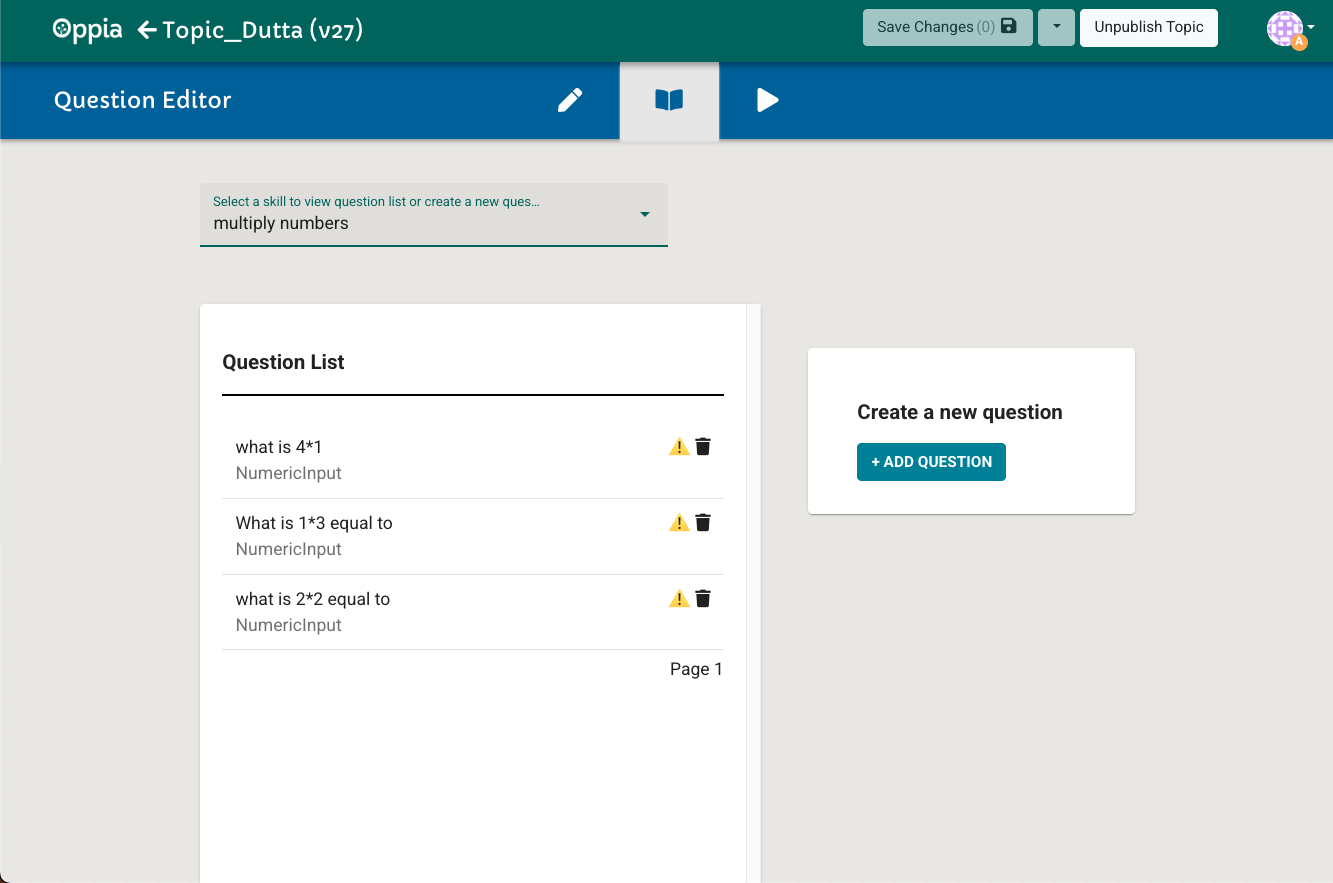
Fig. 1. Selecting a skill in the Question Editor
Use the dropdown menu to select a Skill you would like to add a question to.
Select Create question.
Once your question is complete, select Save and publish question.
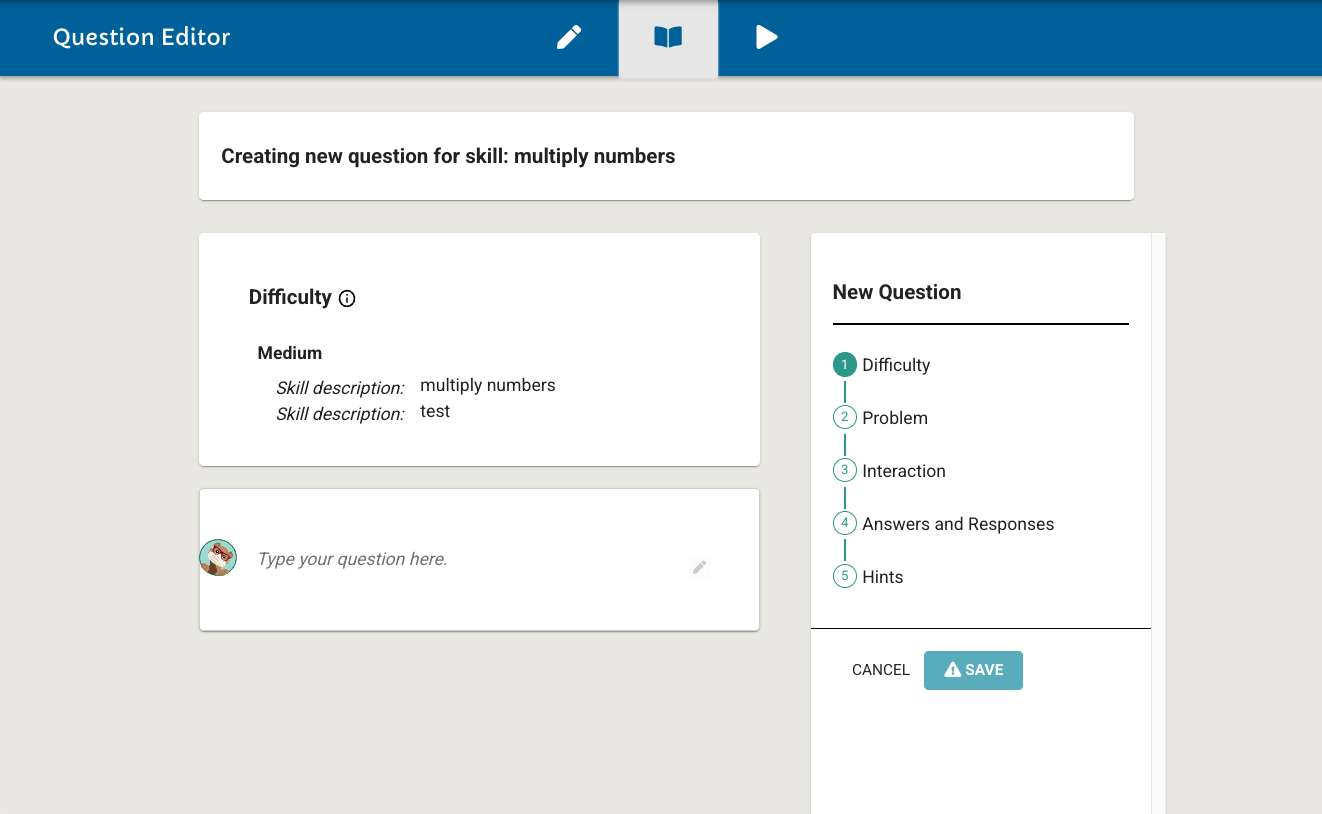
Fig. 2. The Question Editor interface
The Question Editor works similarly to the Exploration Editor. Within this interface, you can:
Write the question content.
Add an interaction (e.g., Multiple Choice, Text Input).
Define responses and provide detailed feedback.
Add hints and solutions.
Note
All questions must include at least one hint to be published. For interactions like Text Input, you must also provide a Solution (a detailed walkthrough of the correct answer) that matches one of the correct answer groups.
—
Edit or Delete a Question
To change the difficulty level of a published question:
Select the three vertical dots next to the question.
Choose a new difficulty level (Easy, Medium, or Hard) from the dropdown menu.
To delete a question:
Select the three vertical dots.
Select Delete.
Warning
Deleting a question is permanent. If the question was part of a published Skill’s practice set, ensure you have enough remaining questions to satisfy the Skill’s requirements.