End an exploration
In this article, you’ll learn how to:
Add an End Exploration interaction
You should add an End Exploration interaction to complete the last card of your lesson.
To add an ending to the exploration, select the last card of your exploration.
Select + Add Interaction / End Exploration.
In the pop-up box, select the End Exploration interaction.
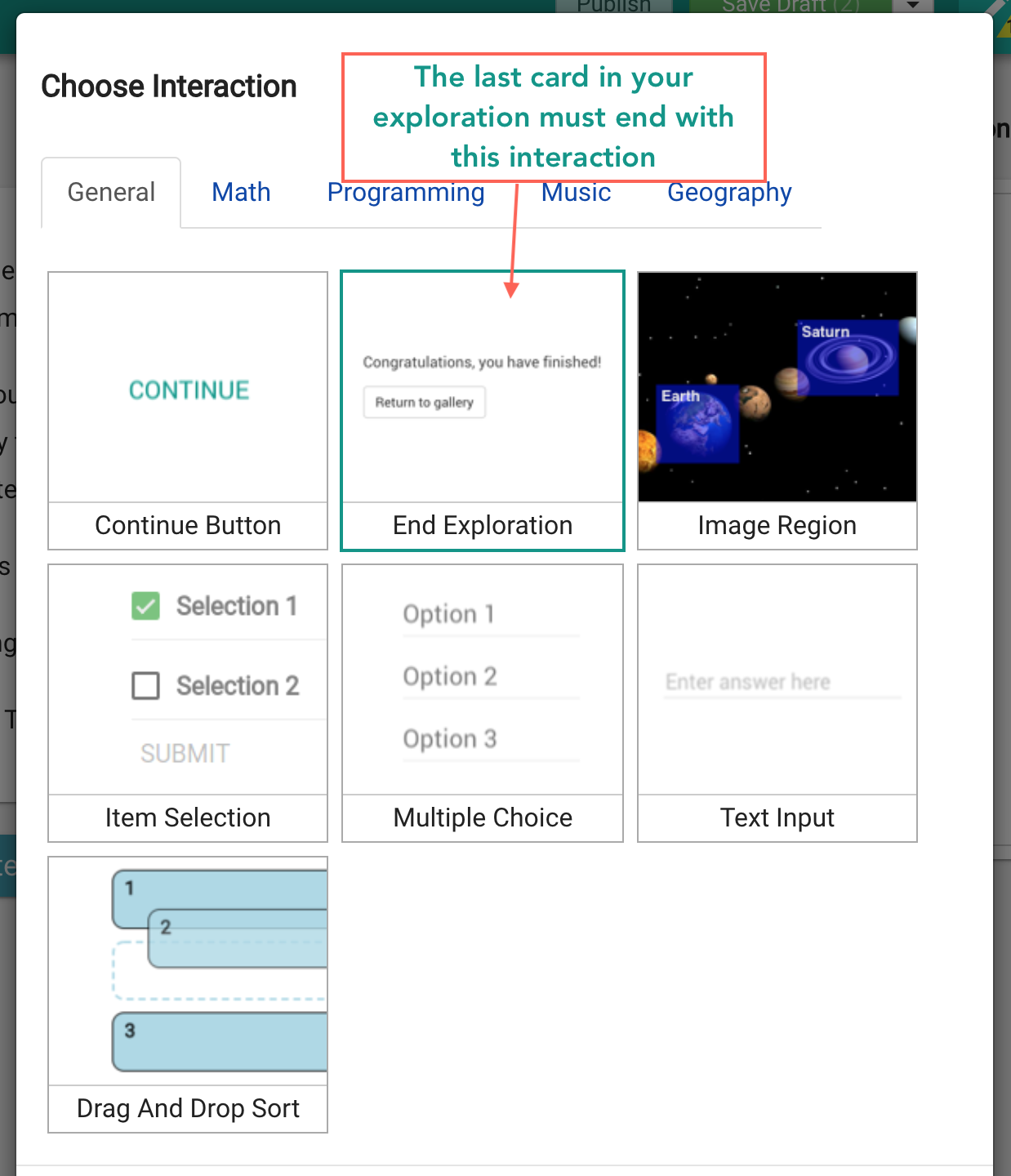
Fig. 1. Select the End Exploration Interaction to end your exploration
Recommend an exploration
When ending your exploration, you can also recommend up to three explorations for the learner to try next. When customizing your End Exploration interaction:
Select Add Exploration ID
Enter the ID of each recommended exploration
Select Save Interaction
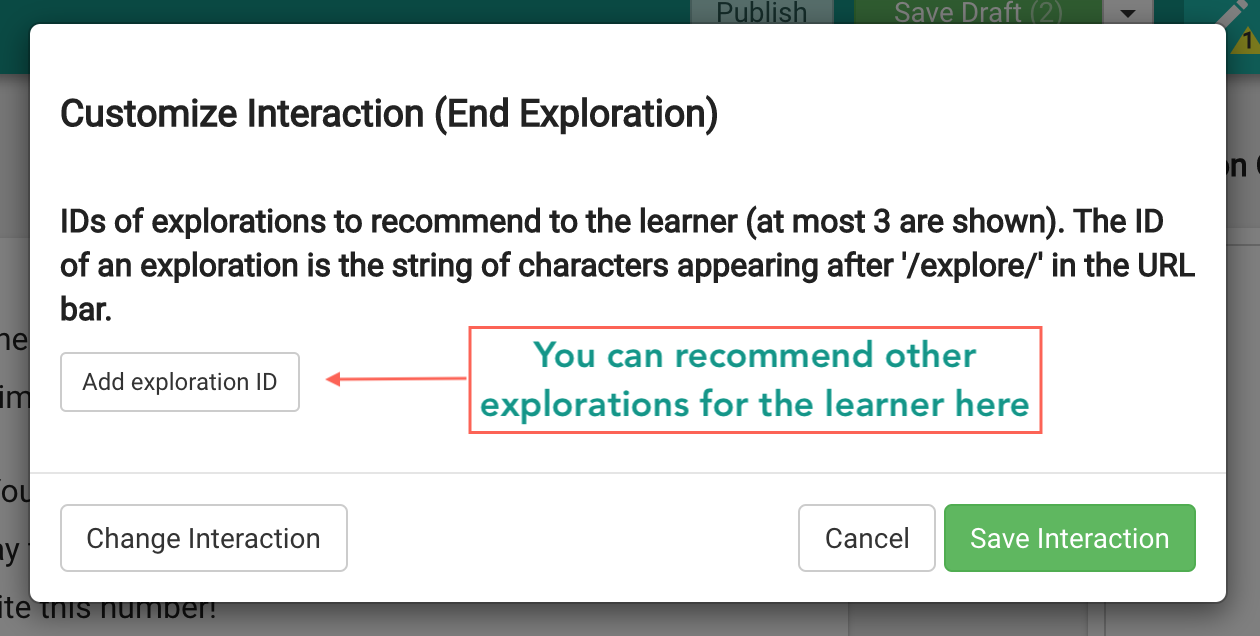
Fig. 2. Customize Interaction (End Exploration) panel
Find the exploration ID
To find an exploration ID:
Select the exploration and select Settings in the navigation menu.
Scroll to the Permissions section to find the exploration URL. The ID is the last string of characters in the URL after “/explore/.”
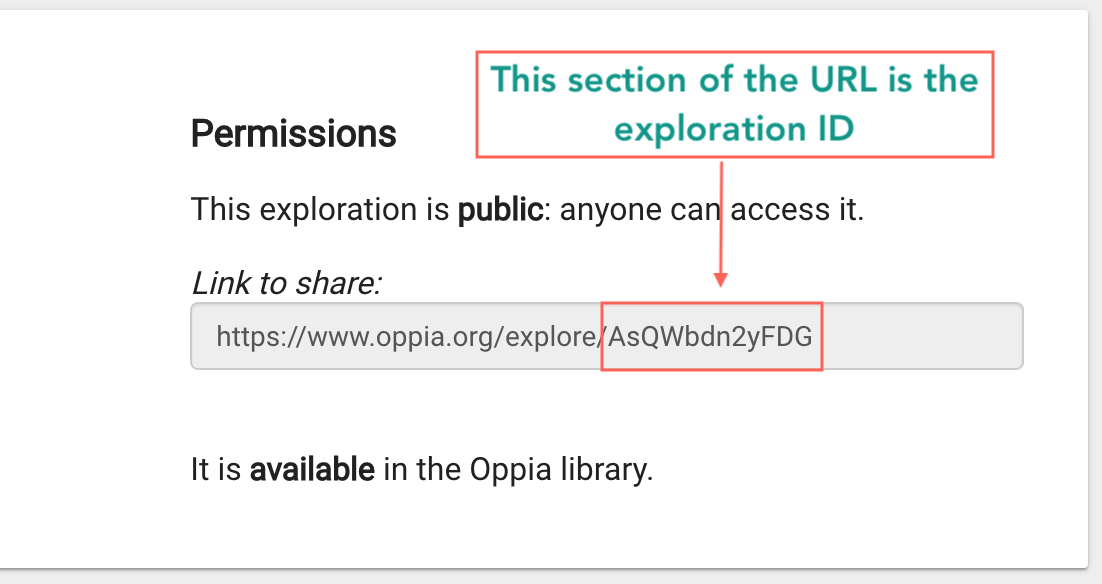
Fig. 3. Permissions panel displaying the Exploration ID