Write a Question for a Skill
As a contributor, you can help create a library of additional practice questions for specific skills, so learners can review and master what they learn in each exploration.
In this article, you will learn how to:
—
Choose a Skill and Question Difficulty
Log in and select your Profile picture in the navigation menu.
Select Contributor Dashboard.
Select Submit Question in the tab menu. You will see a list of skills (e.g., Place Values) and their topics (e.g., Decimals) that need questions.
Select Suggest Question next to a skill.
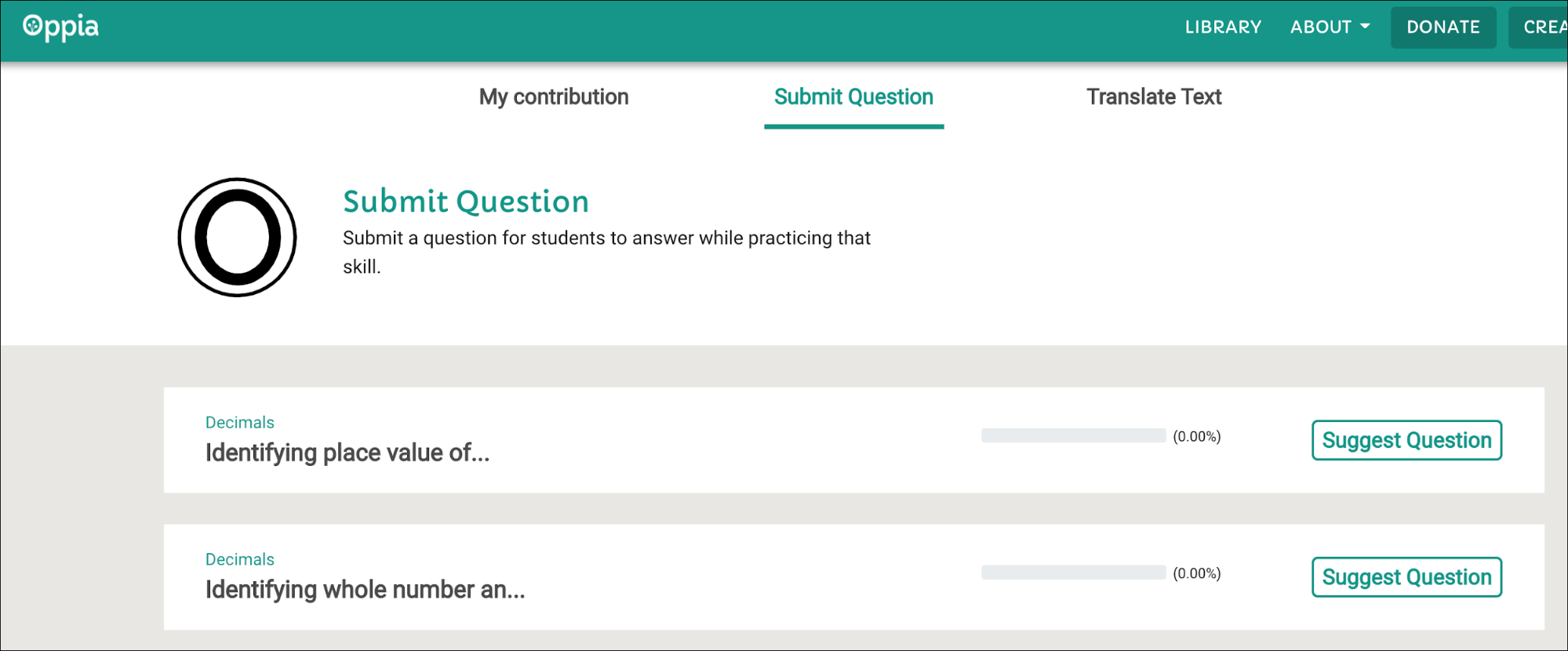
Fig. 1. Suggest a question for a skill on the Contributor Dashboard
Choose the difficulty level. If the skill creator has provided Rubrics, they will appear here to explain what makes a question suitable for Easy, Medium, or Hard levels.
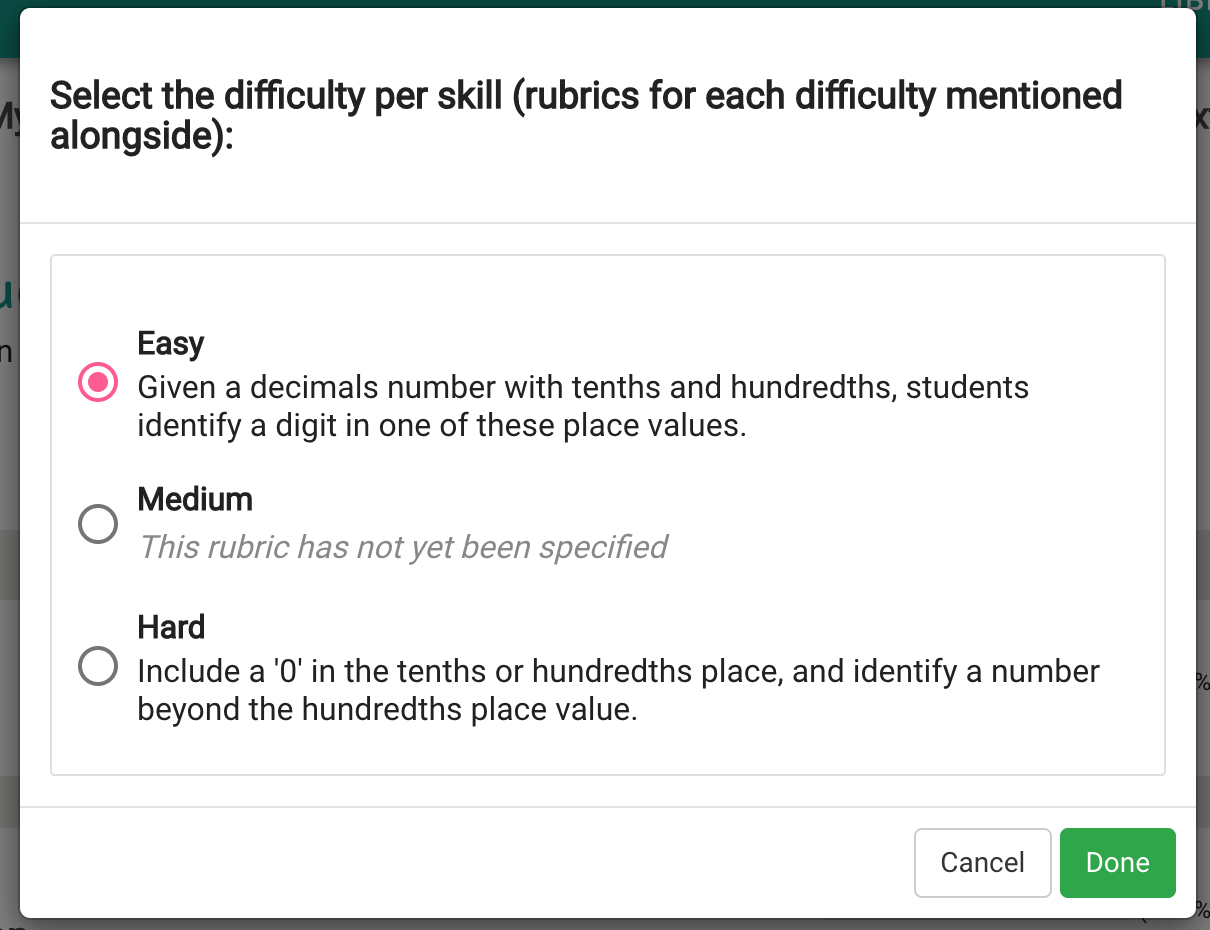
Fig. 2. Question difficulty dialog
Select Done to open the Question Editor.
—
Suggest a Question
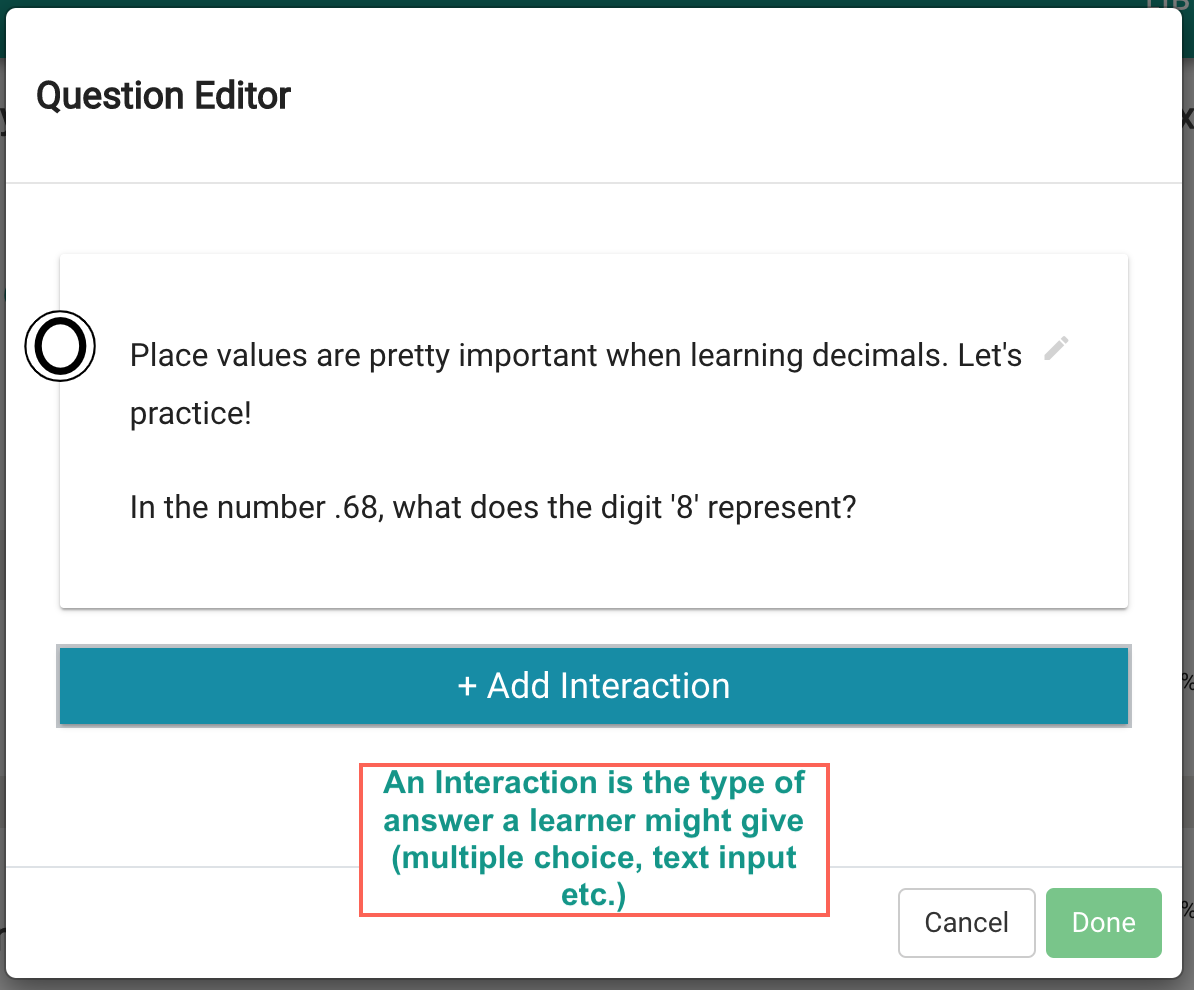
The Question Editor is where you build the interactive experience for the learner.
Write the Question
In the text field, write your question. Use a conversational tone and personal pronouns (e.g., “you”, “your”). When finished, select Save Question.
Add an Interaction
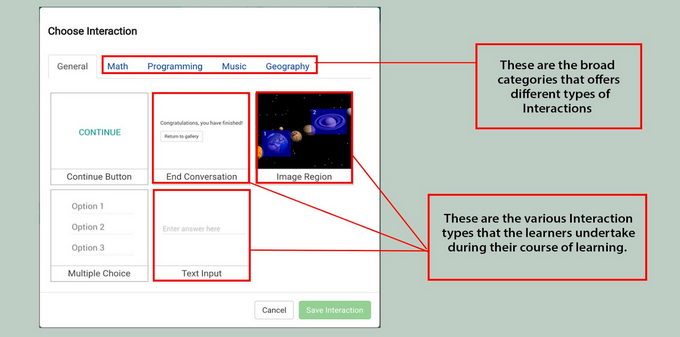
Once the question text is saved, you can add an interaction to allow the learner to answer.
Add a Response
The Add Response panel helps you build Oppia’s feedback based on the learner’s answer.
Select possible answers and add appropriate responses. Use feedback to celebrate correct answers and offer support for incorrect ones.
At least one response must be marked as correct.
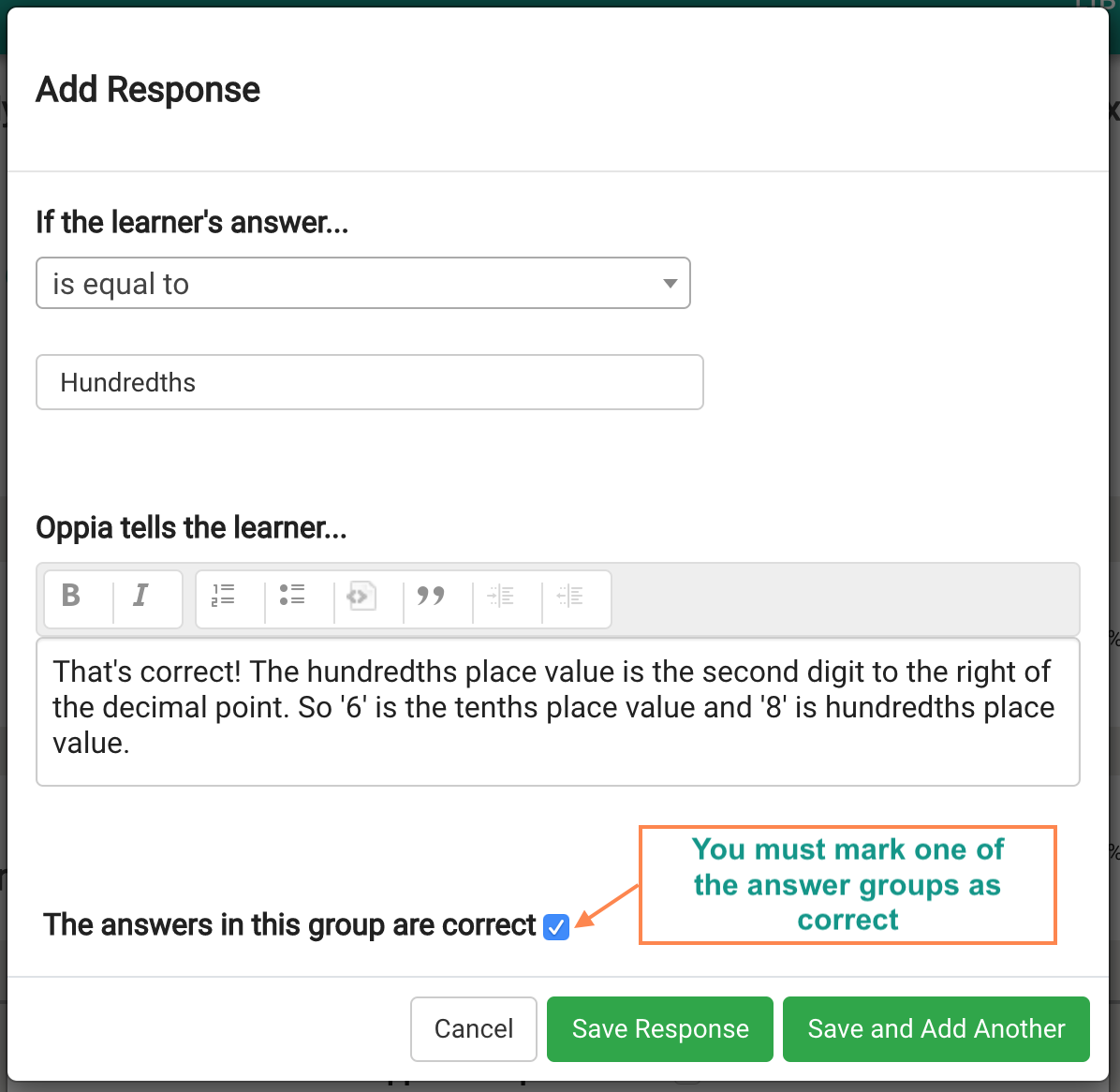
Fig. 5. Marking the correct answer
Select Save Response.
Solicit Answer Details (Optional): If you want Oppia to ask the learner to explain their reasoning, check this box in the editing screen.
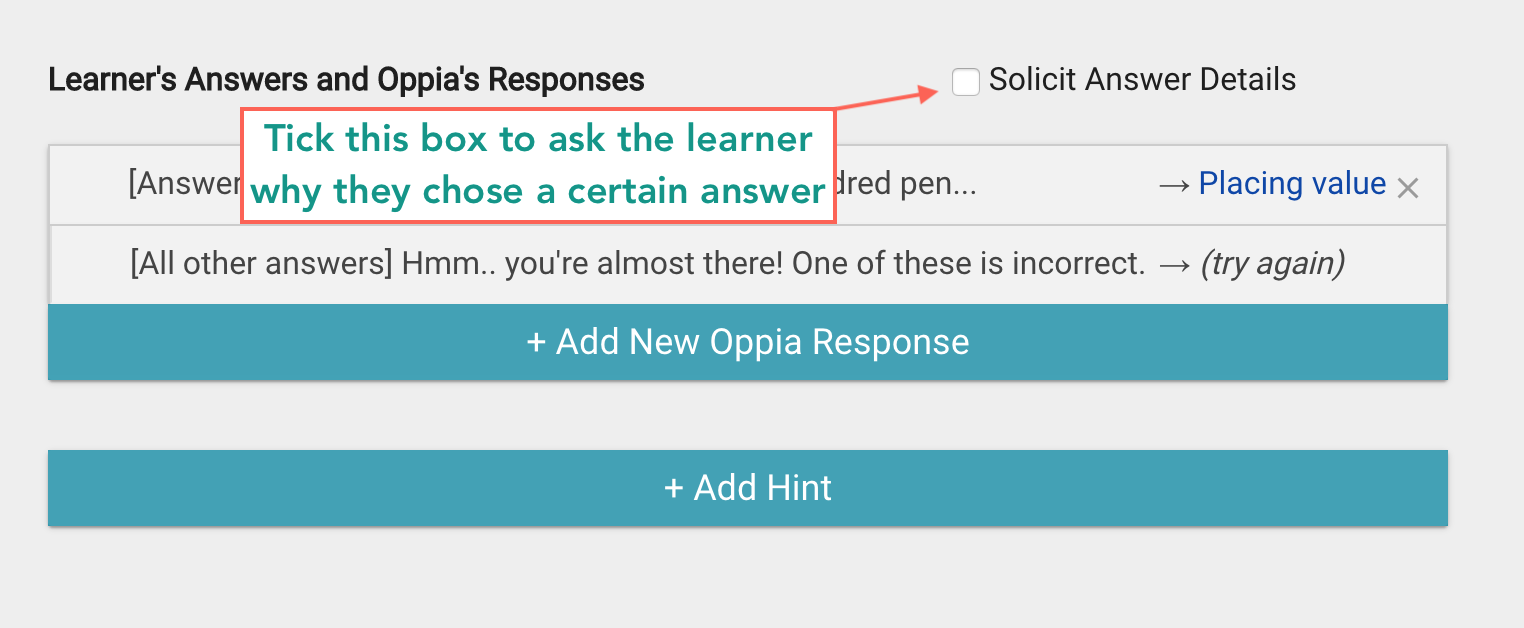
Fig. 6. Solicit Answer Details checkbox
—
Add a Hint
Select +Add Hint on the editing page.
Type your hint and select Save Hint.
Select Done to close the editor. Your question is now submitted for review.
Check the status of your submission on the My Contribution page of the dashboard.
—
Add a Misconception
Misconceptions provide targeted feedback for common errors. If a skill has attached misconceptions, you may be required to tag them to specific wrong-answer responses.
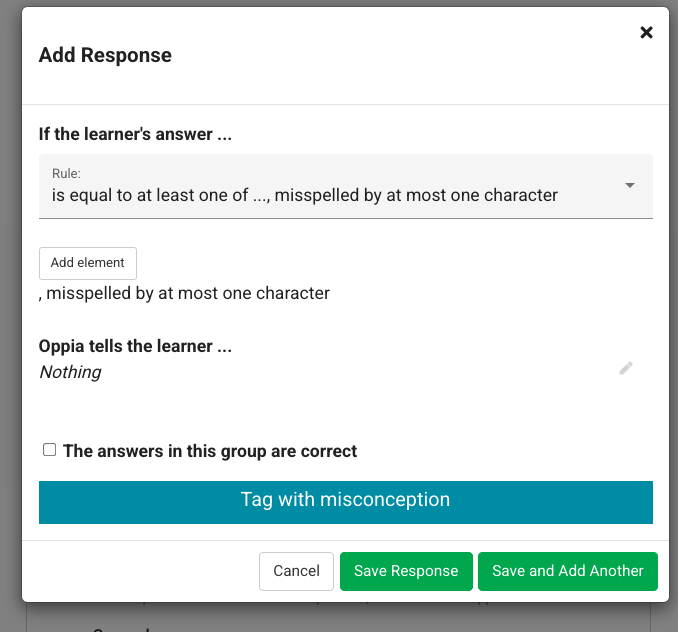
Fig. 7. Tagging responses with a misconception
Optional Misconceptions
If optional misconceptions do not apply to your question:
Select the three vertical dots next to the optional misconception.
Select Mark as Not Applicable.
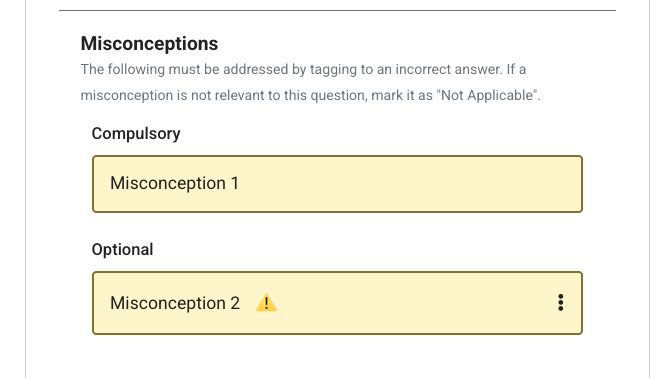
Fig. 8. Managing optional and required misconceptions
—
Tips to Create Effective Questions
Address Misconceptions: Ensure your feedback directly addresses common learner errors.
Variety: Avoid patterns (like making “A” the correct answer every time). Use different interaction types.
Simplicity: Keep the language simple and the focus strictly on the skill being practiced.
Scaffolding: Ensure the question complexity matches the instruction the learner has already received.
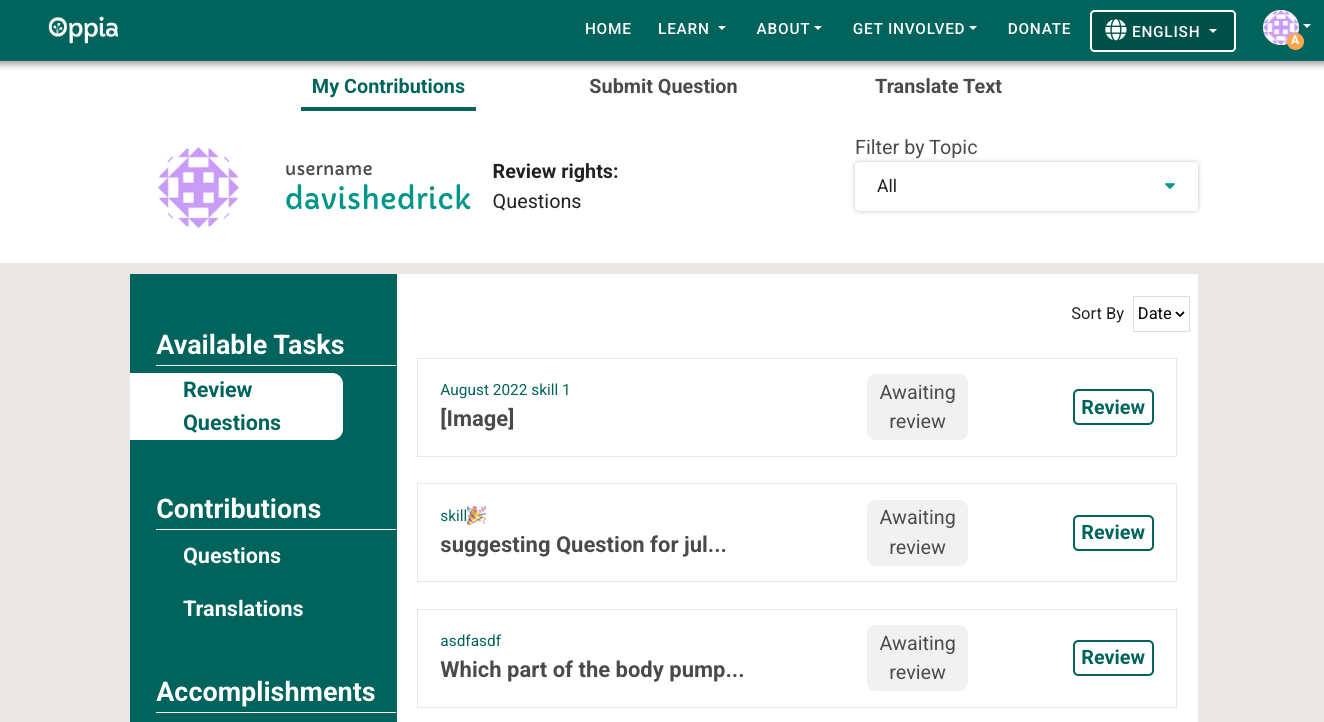
Fig. 9. Tracking status on the My Contribution tab