Add a Skill to a Lesson
In this article, you will learn how to:
Once you publish a Skill, it will be available in the Skills tab on the Topics and Skills Dashboard. To find the Skill, use the Status, Sort, and Keyword fields in the Filter panel to search for it.
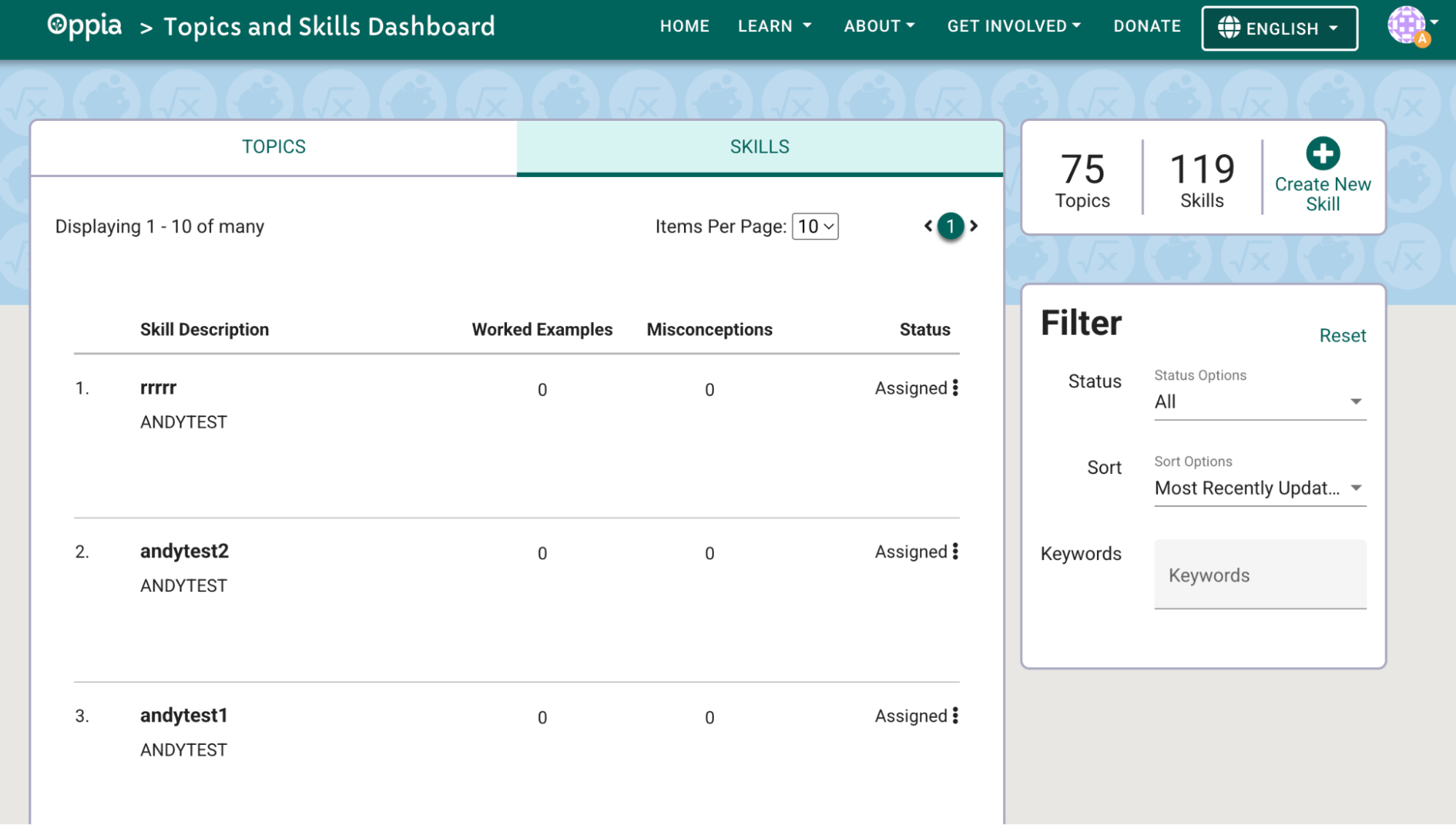
Fig. 1. Skills Dashboard Filter Panel
—
Assign a Skill to a Topic
Assigning a Skill to a Topic keeps it organized with related material and allows lesson creators to add that Skill to their lessons.
To assign a skill to a Topic:
In the Topics and Skills Dashboard, locate your Skill.
Select the three dots next to Unassigned.
Select Assign to Topic from the dropdown menu.
Search for the desired topic in the dialog box that appears.
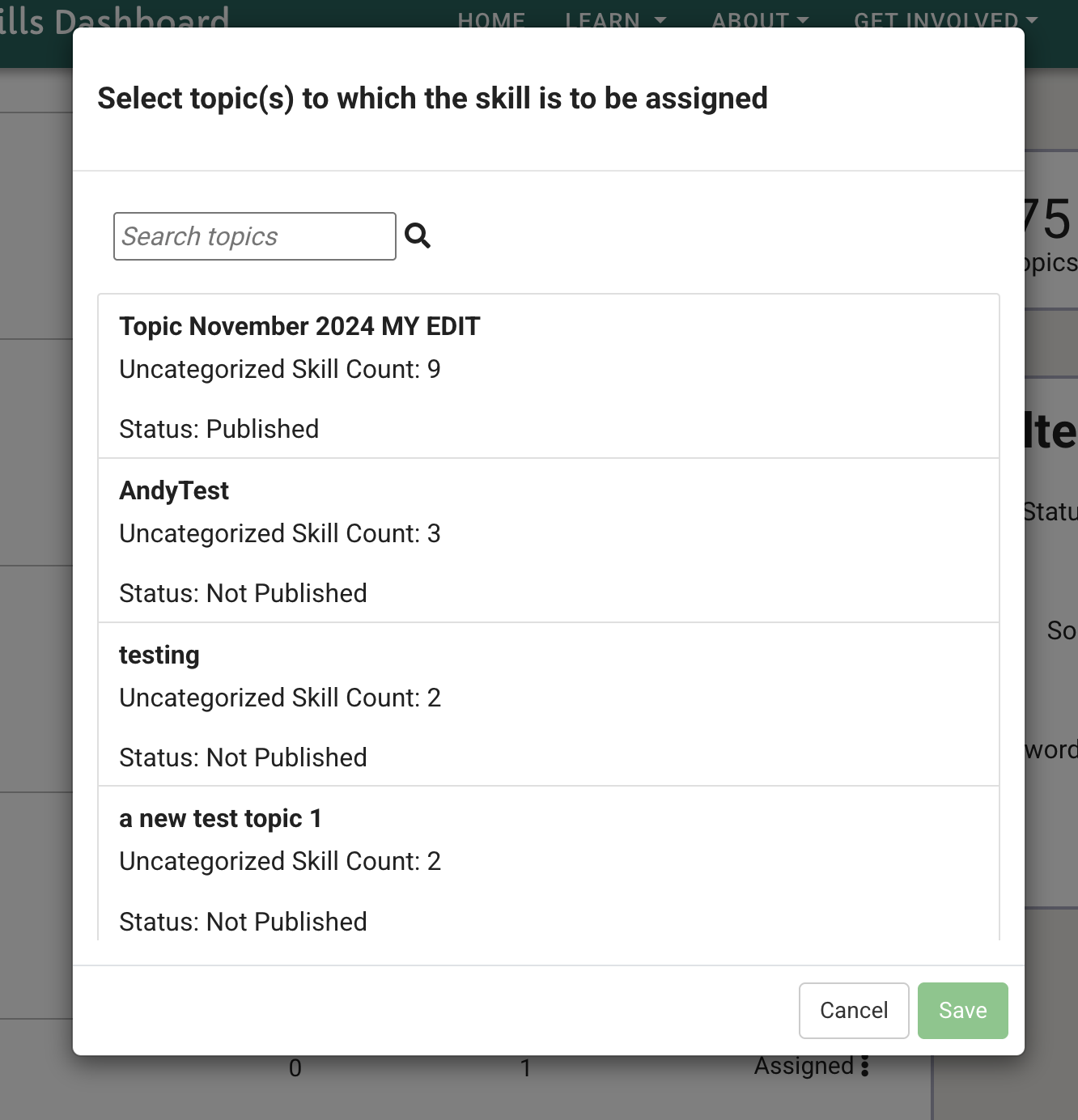
Fig. 2. Dialog to assign a skill to a topic
Select the Topic from the list. It will be highlighted in green when selected.
Select Save to assign the Skill to the Topic.
—
Create a Skill and Assign it to a Subtopic
When you assign a Skill to a Topic, it is initially placed under the Uncategorized Skills section. To help learners review Skills more effectively, you should group them into logical Subtopics.
Create a Subtopic
In the Topics and Skills Dashboard, select the topic you want to update.
In the Topic Editor, scroll to the Subtopics section. If no Subtopics exist, all Skills appear below the red Uncategorized Skills banner.
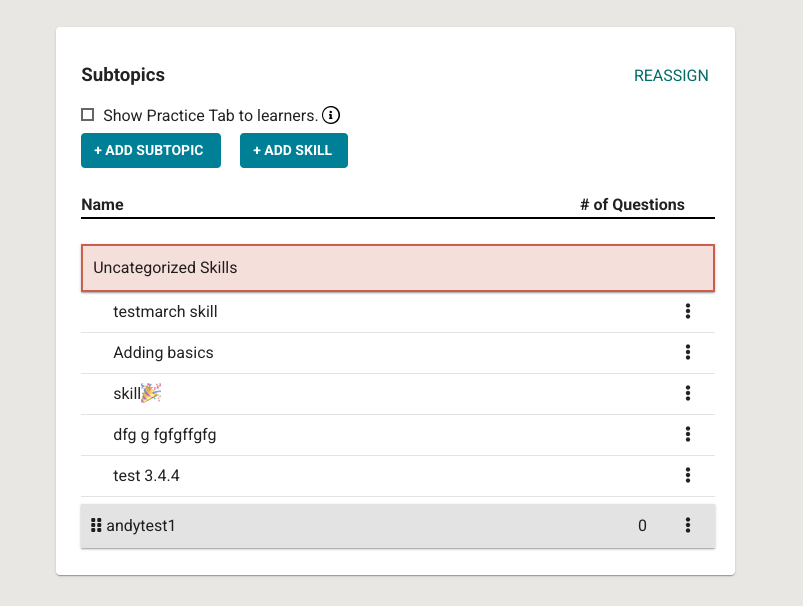
Fig. 3. Subtopics panel in the Topic Editor
Select +Add Subtopic.
In the Create new subtopic dialog, complete the following fields:
Title
URL fragment (used to generate the subtopic’s permanent link)
Explanation (a short description of the subtopic)
Thumbnail image
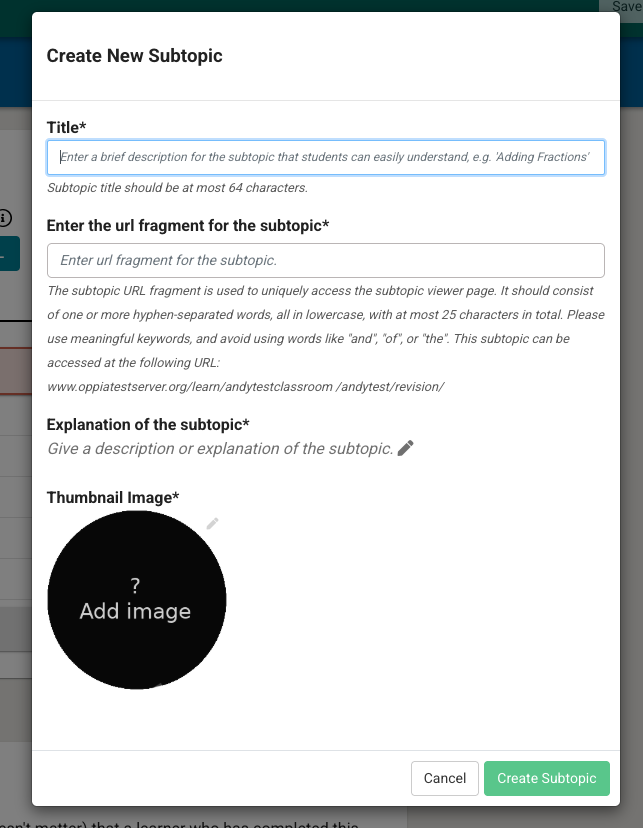
Fig. 4. Create New Subtopic dialog
Select Create Subtopic.
—
Assign a Skill to a Subtopic
Once a subtopic is created, it appears under the Uncategorized Skills section.
To assign a Skill to a Subtopic:
Select the three vertical dots next to the skill you want to assign.
Select +Assign to Subtopic from the dropdown menu.
In the dialog that appears, select the radio button next to the Subtopic. The selection will highlight in green.
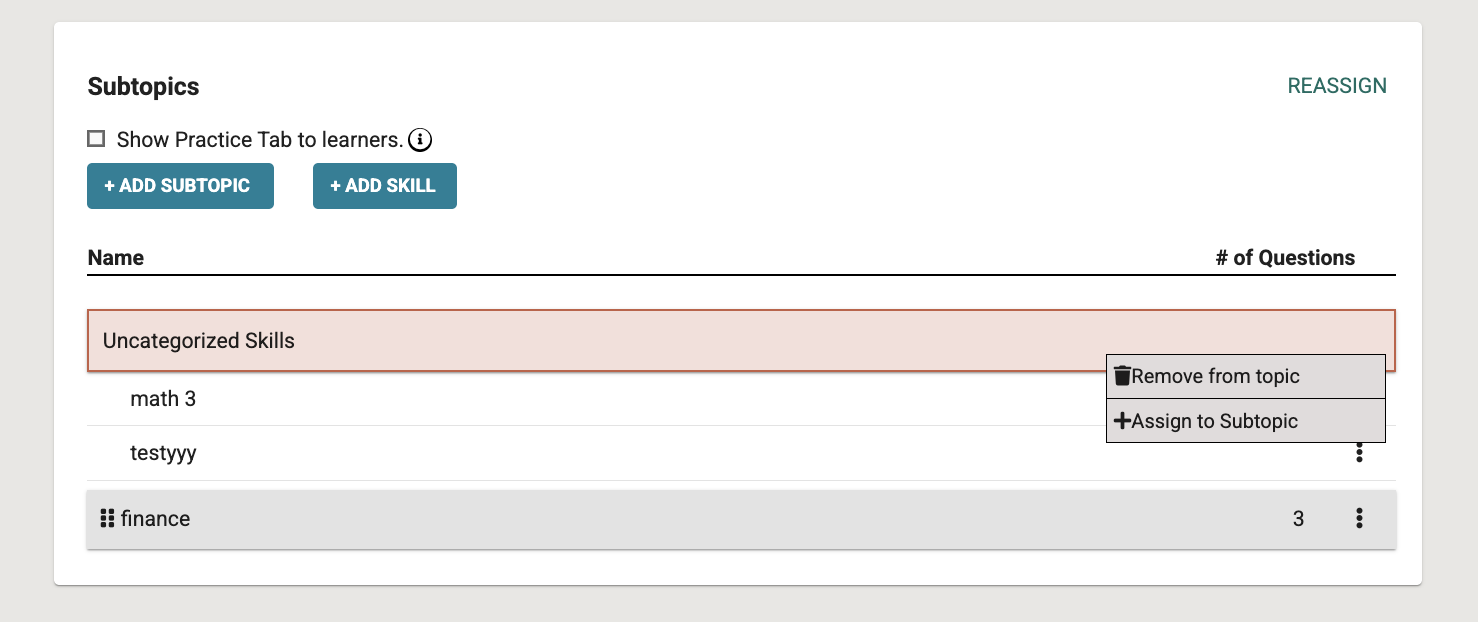
Fig. 5. Assigning a Skill to a Subtopic
Select Assign.
Unassign a Skill from a Subtopic
Select the three vertical dots next to the Skill you would like to remove.
Select Remove from Subtopic.
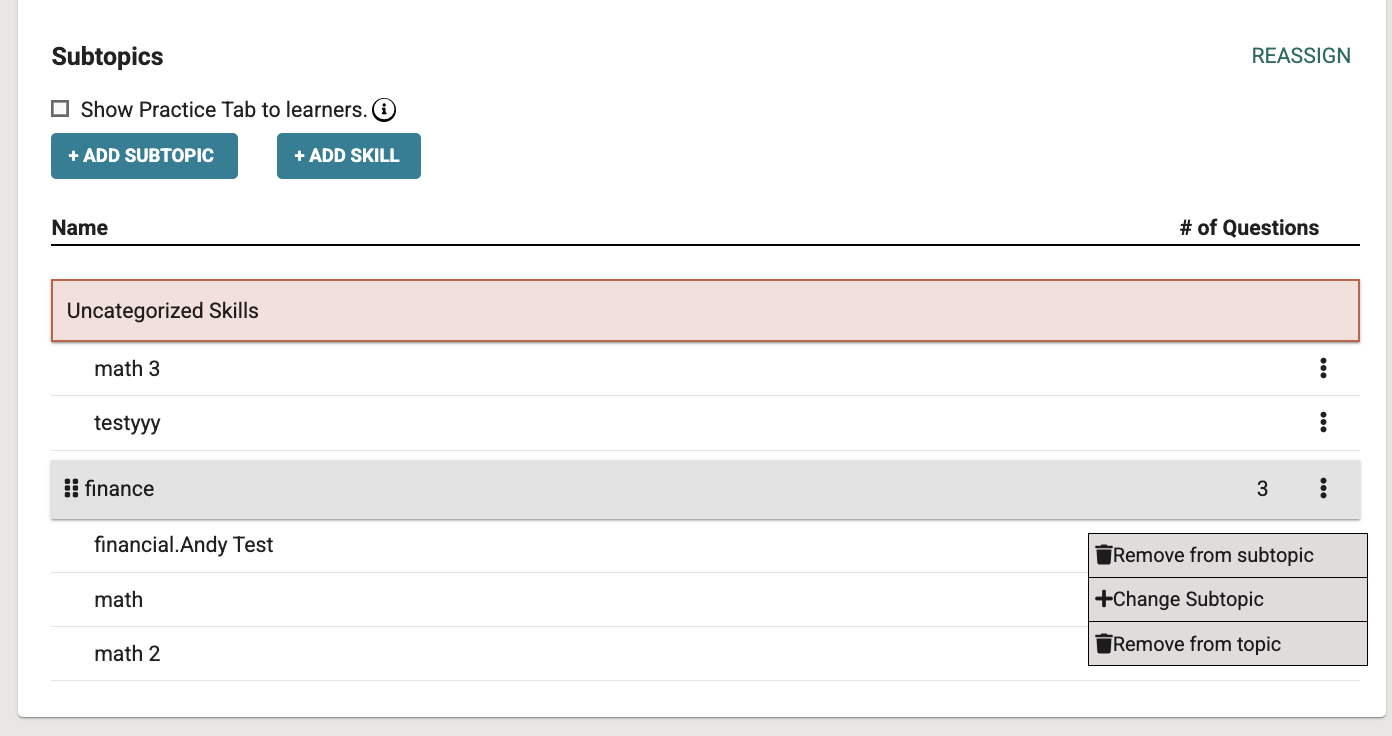
Fig. 6. Removing a Skill from a subtopic
Warning
Each Subtopic must contain a unique set of Skills. Do not assign the same Skill to more than one Subtopic within the same Topic.