Create a New Topic, Story, or Chapter
In this article, you will learn how to:
—
Create a New Topic
Hover over your profile and select the Topics and Skills Dashboard.
In the Topics tab, select Create New Topic.
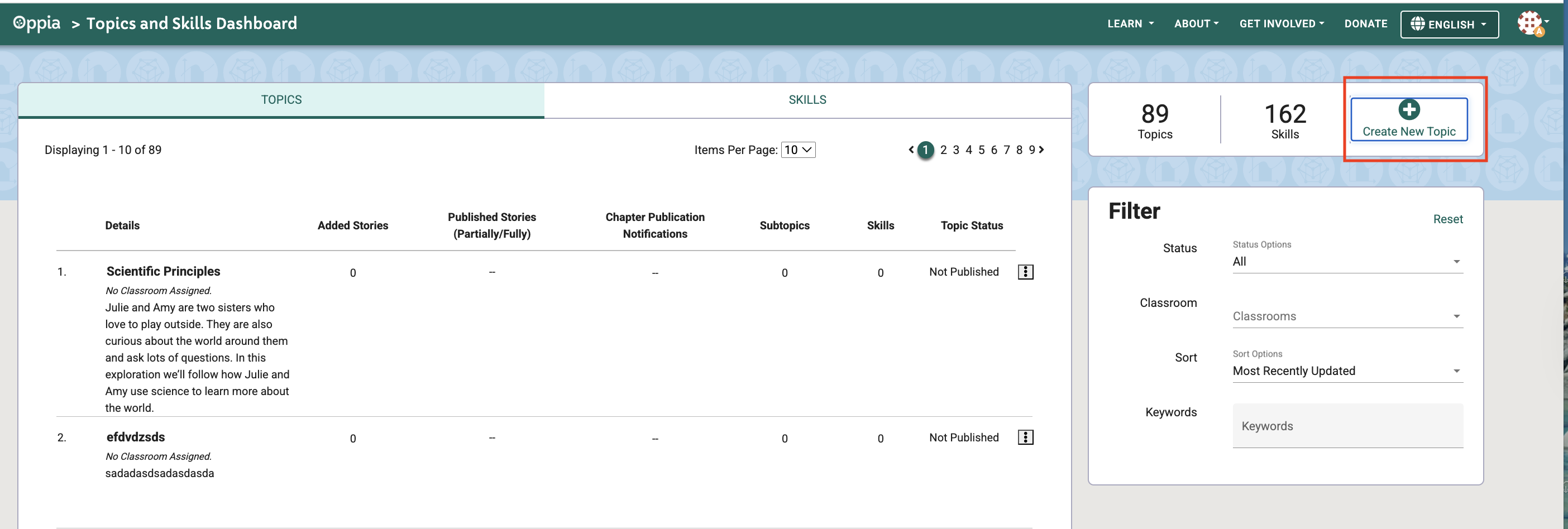
Fig. 1. Create New Topic button
Enter the topic name, URL, web title fragment, and description.
Select Create Topic.
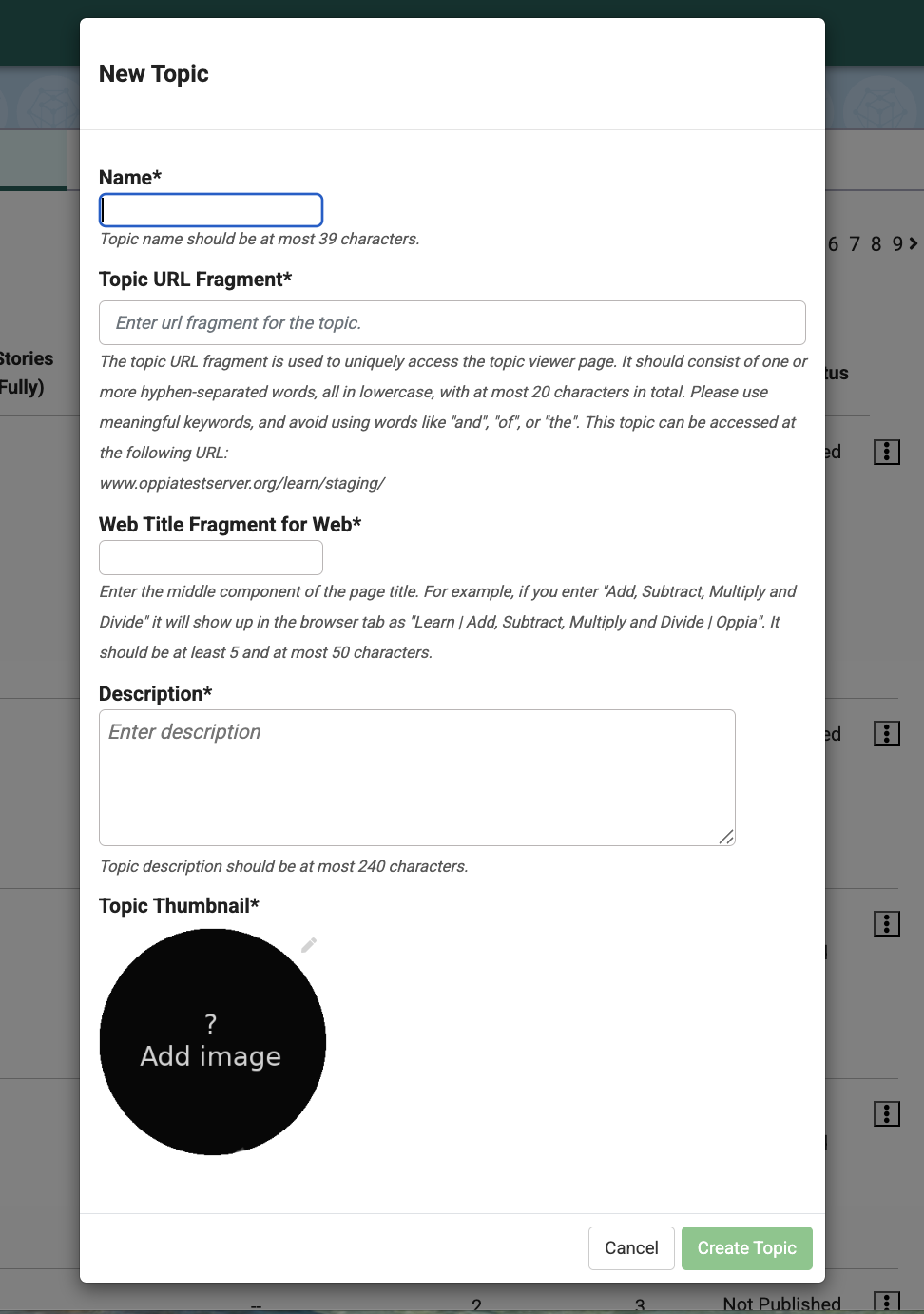
Fig. 2. New topic information
—
Create a New Story
Select Topics in the Topics and Skills Dashboard.
Select the three-dot menu on the right of an Exploration and select Edit.
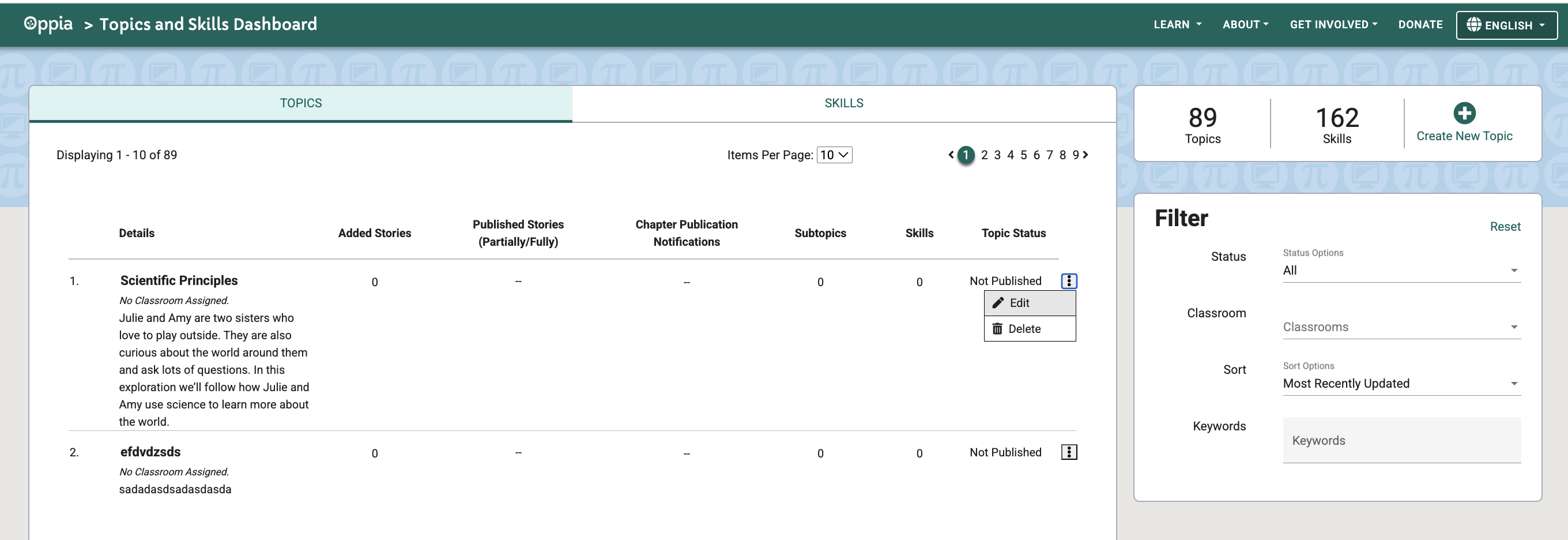
Fig. 3. Edit menu in the Topics and Skills Dashboard
Select Add Story under the Canonical Stories panel.
Add the details of the Story and select Create Story.
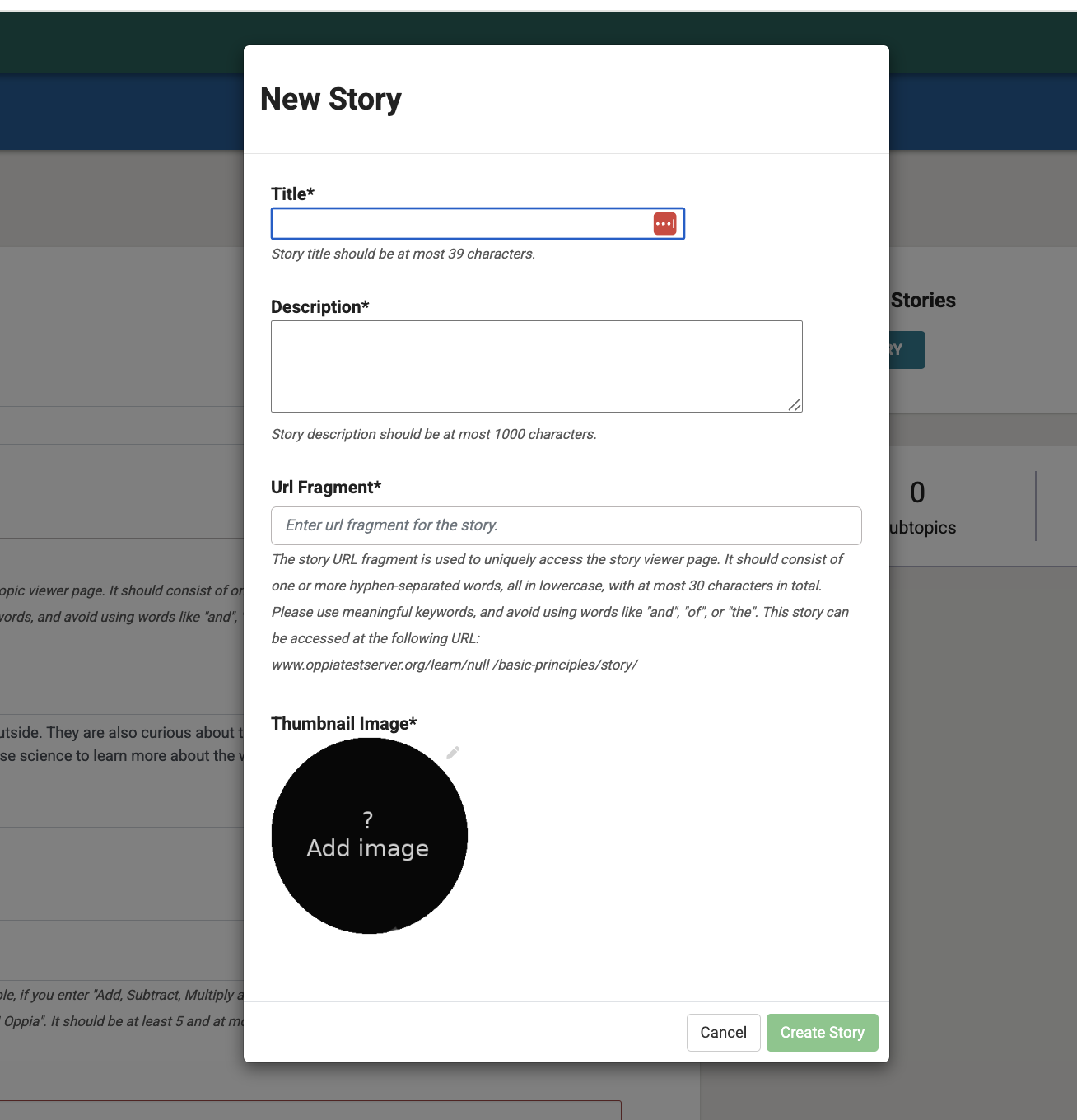
Fig. 4. Create a new story dialog
To save a draft, select Save changes. You can access the draft in the Topic Editor.
To publish, select Publish Story.
—
Create a New Chapter
To create a new Chapter for the story in the Topic Editor, select Add Chapter.

Fig. 5. Add Chapter
Add a chapter title, Exploration ID, and thumbnail image.
Select Create Chapter.
Import an Exploration
When you create a chapter, you will need to complete the following:
Chapter Outline: Enter a description of what the lesson will entail to guide Exploration creators.
Exploration ID: Import a published Exploration by :doc:entering its ID </creators/edit-a-lesson>. You cannot publish the Story without this step.
Prerequisite Skill IDs: Select Prerequisite Skills based on those identified in the Skill Tree by selecting Add prerequisite skill.
Acquired Skill IDs: Select acquired skills for this lesson based on those identified in the Skill Tree by selecting Add acquired skill.
—