Improve a lesson
In this article, you will learn how to:
View lesson statistics
In the Creator Dashboard, below each lesson you’ll see:
Average rating (star icon)
Views (eye icon)
Open feedback (message icon)
Last updated (clock icon)
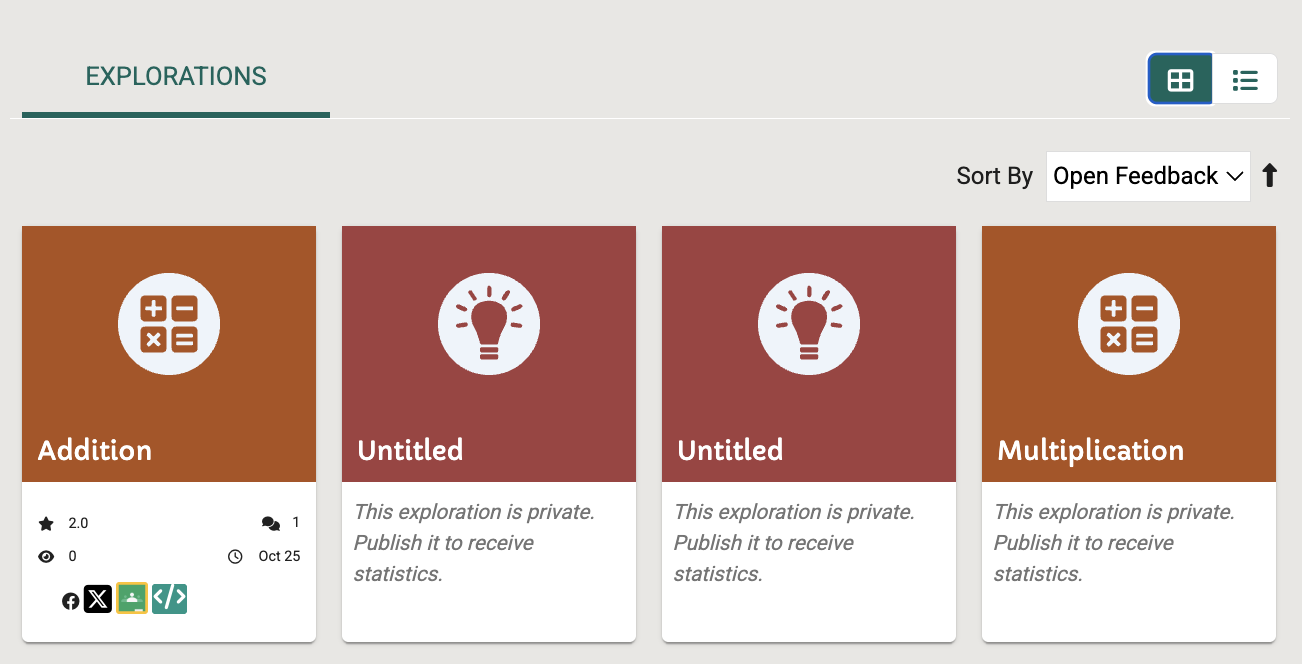
Fig. 1. Lessons a lesson creator has made
To view detailed lesson statistics:
In the Exploration Editor, select Statistics (the graph icon) in the navigation menu to see how many learners have completed the lesson and the path they took to finish it.
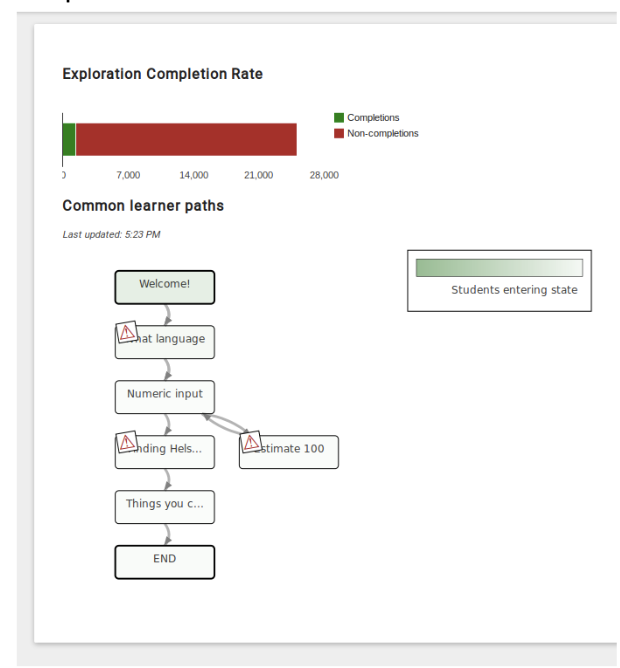
Fig. 2. Exploration completion rates
The Exploration Stats panel shows how often each card was completed, each rule for a given card was triggered, and the different answers learners submitted.
For example, if a particular wrong answer was submitted for a card, you could use this information to include a new rule, content, or branch to help learners move through the lesson easier.
To edit a card, select the card name under Common learner paths.
You can sort the explorations and select Open Feedback to view explorations with feedback.
Exit rate statistics
Oppia also provides statistics on where the learner quit in a lesson.
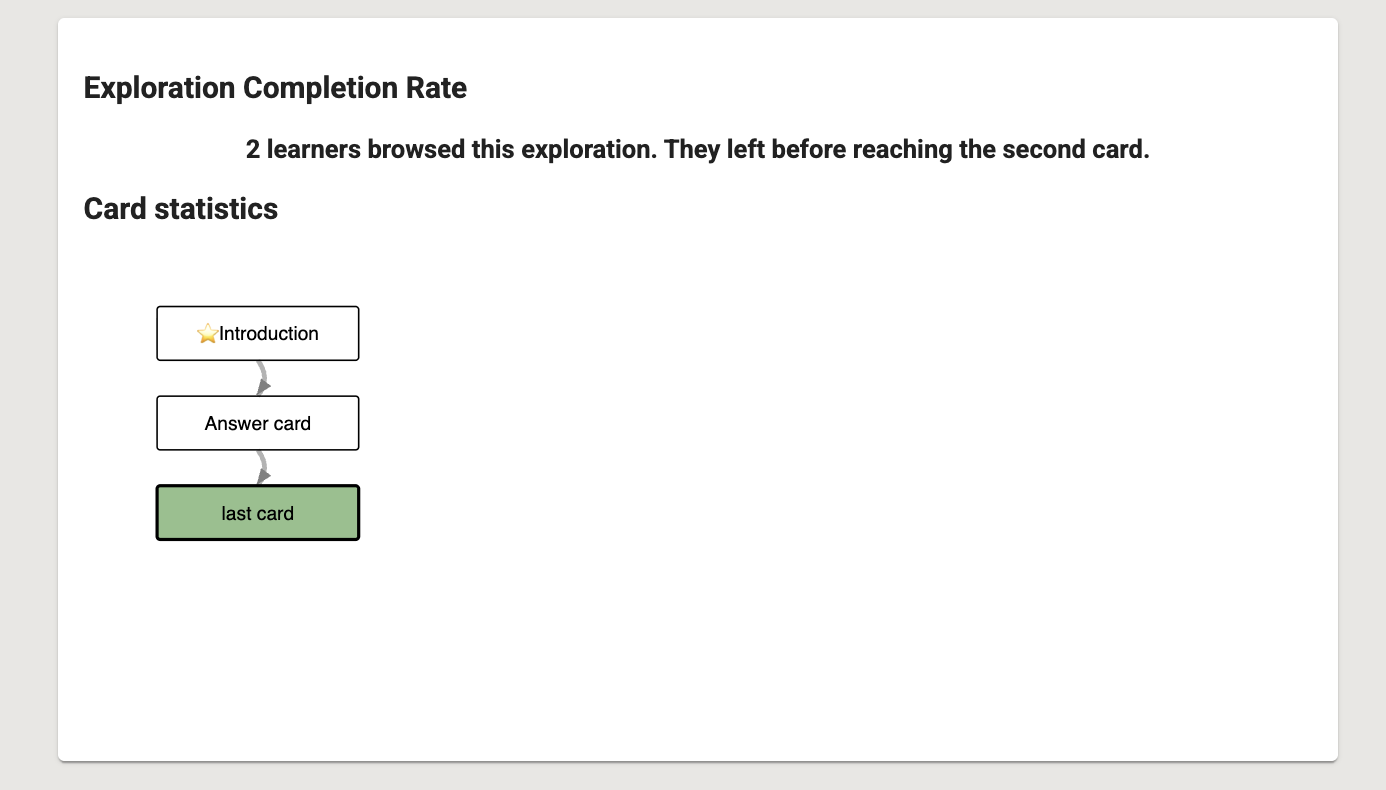
Fig. 3. Statistics showing how many left before completing a lesson
To see statistics on the exit rate, open the Statistics panel and select the card. A pop up appears with details about how many learners exited on that card.
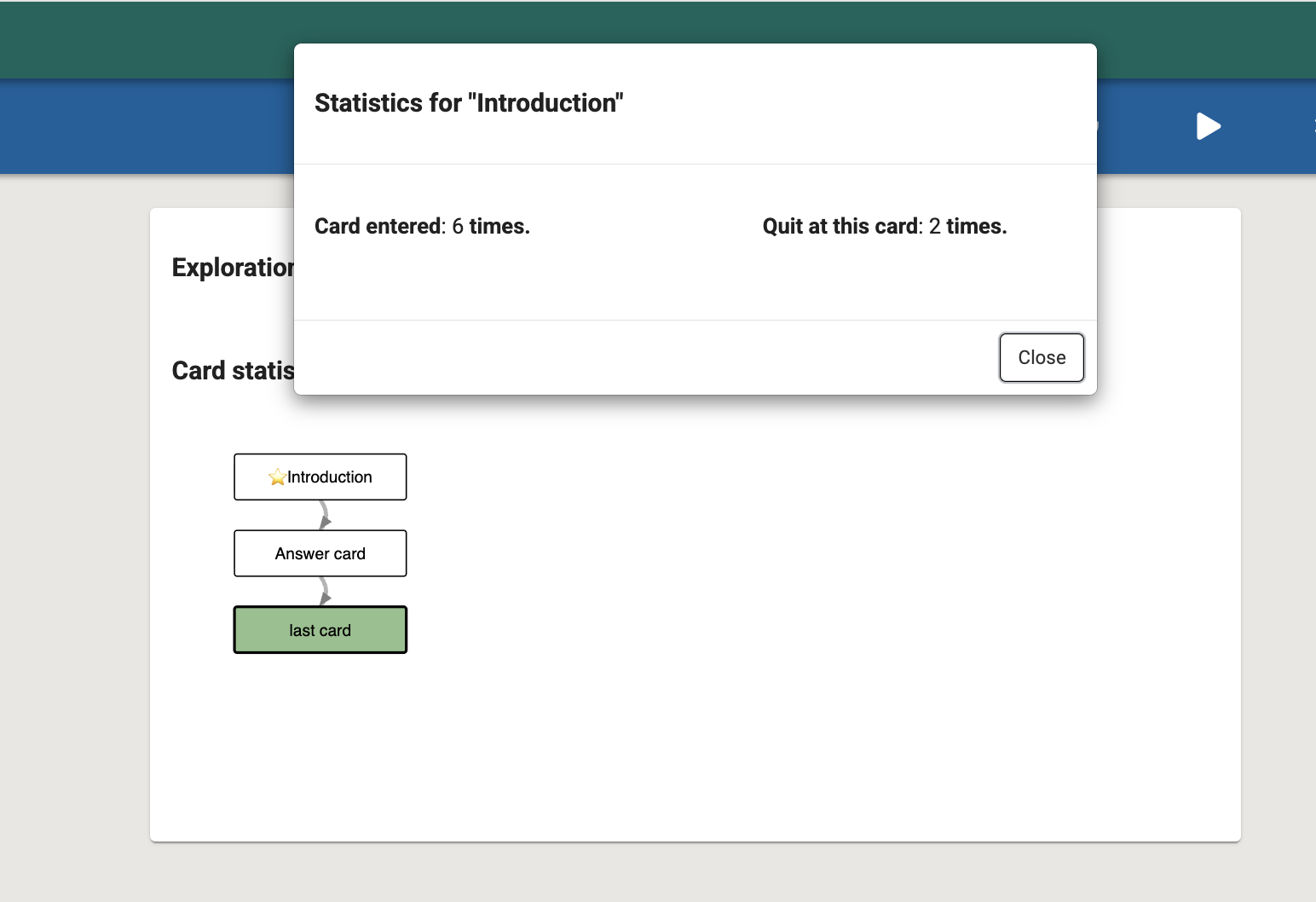
Fig. 4. Statistics shown for each card
Note
Be aware of patterns here. If learners quit a particular card, the difficulty level may be too high, or the content may be ambiguous.
Review feedback on a card
Learners can provide feedback on each card as they go through a lesson.
In the Exploration Editor, select Feedback (message icon). You will see the open feedback for the Exploration.
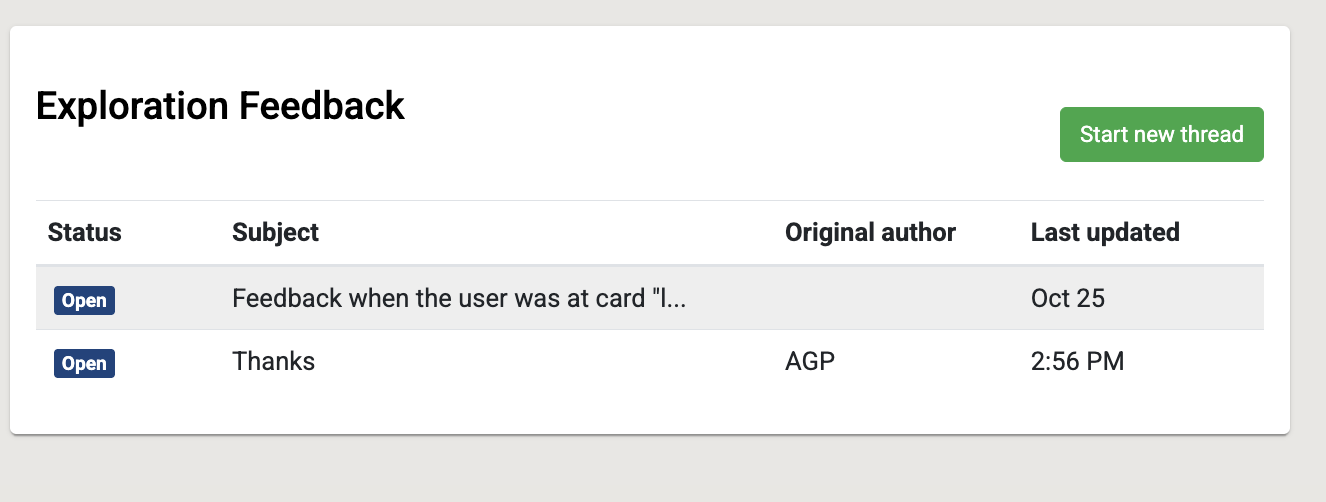
Fig. 5. Lesson feedback for each card
Select Open to respond to the feedback.
Respond to the feedback and select Send. If you’re still working on the task, leave the status open. You can also change the status based on your response.
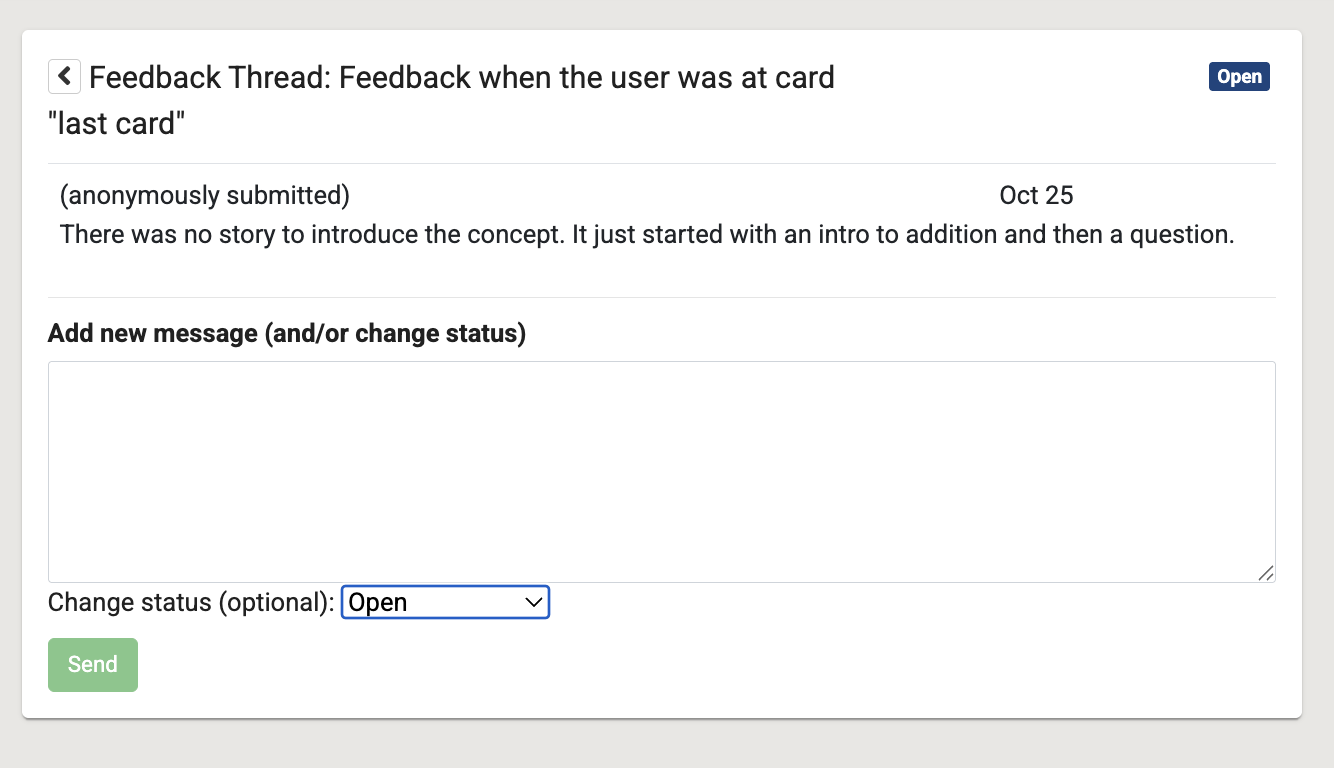
Fig. 6. Feedback threads to address and respond to learner feedback
Add branches to a lesson
When building a lesson, create a single series of questions and answers that help learners understand the concept. This is the trunk of your lesson. You can add branches to this trunk as learners engage with your lesson and you notice patterns in their responses.
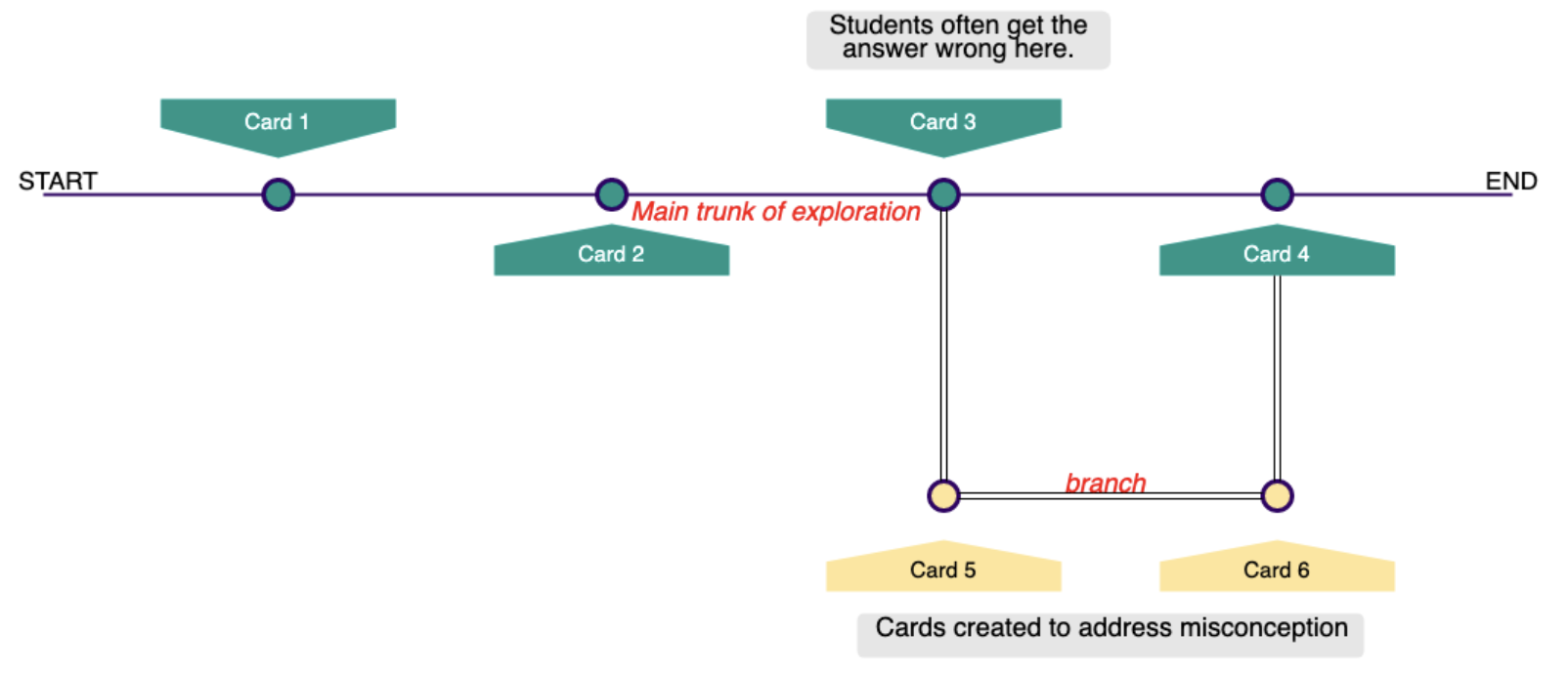
Fig. 7. Example of a branched lesson
For example, if learners are answering “Hundreds” to a decimal place-value question, this might indicate that they are mistakenly equating the place values of decimals with those of whole numbers. You can branch out from this card and provide further explanation to correct this misconception.
In Exploration Editor, select the card in question, and under Learner’s Answers and Oppia’s responses, select the incorrect answer option.
Select A New Card Called… from the drop-down menu to add a card that branches out from the incorrect answer.
Add a title to the card and select Save Destination. The new card is now visible in the Exploration Overview section.
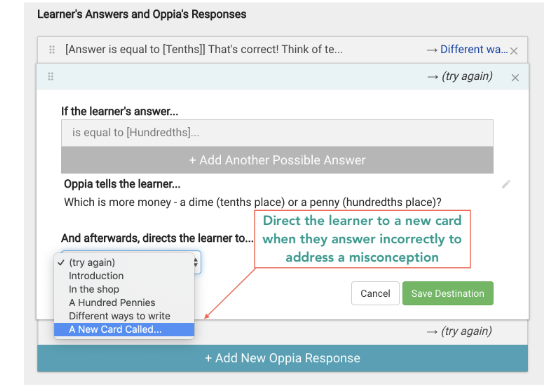
Fig. 8. Direct the learner to address a misconception
Open the card to add content. You can add several cards on this branch and redirect the learner back to a card on the main path of the exploration.
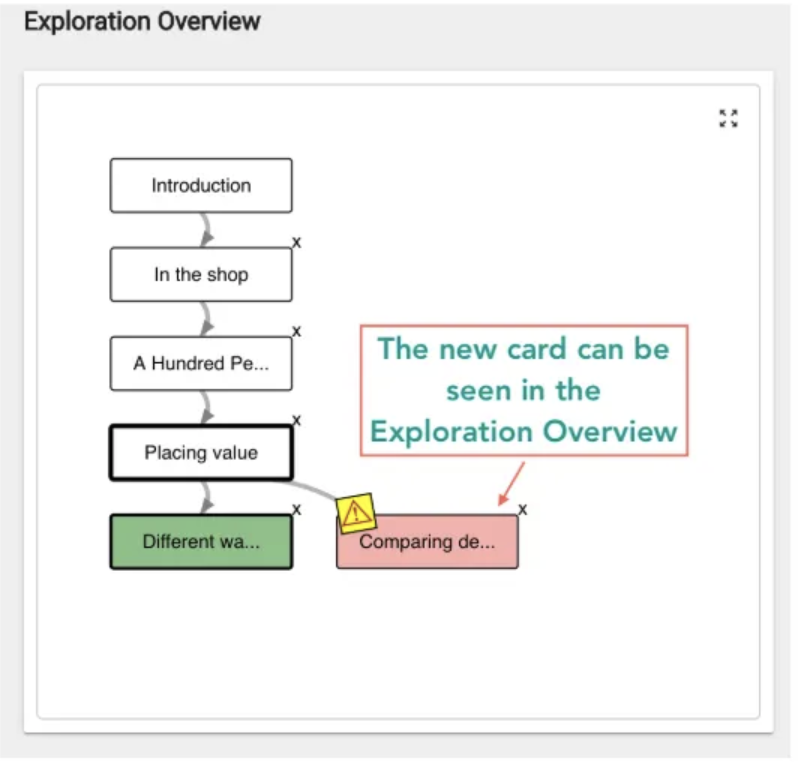
Fig. 9. Lesson branch
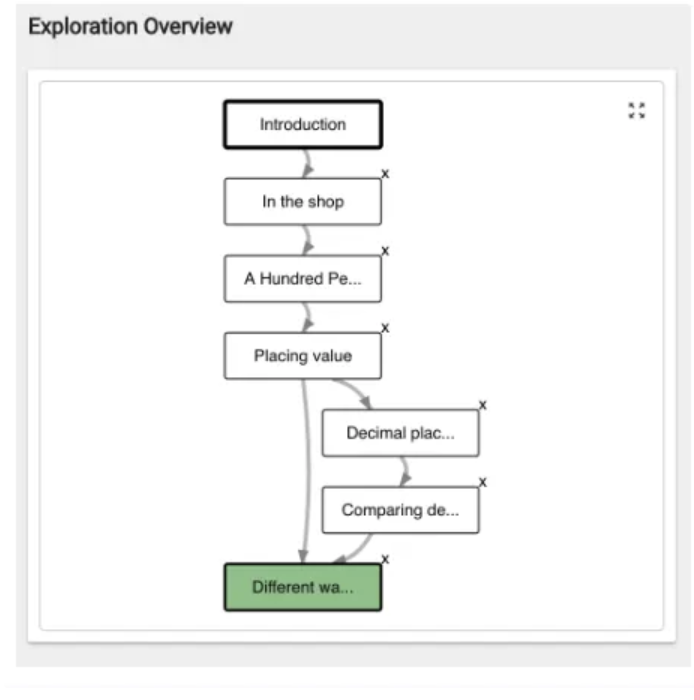
Fig. 10. Completed branched lesson path