Lesson setup
In this article, you will learn how to set up the exploration editor.
Visit the Exploration Editor
Select your profile photo in the top right corner, then select Creator Dashboard from the dropdown menu.
Select Create Exploration. This will open the Exploration Editor.
Exploration Editor
The Exploration Editor displays one card at a time. As you create and expand your exploration, you add more cards, all of which appear in the Exploration Overview panel.
You can edit any card at any time by selecting its box in the Exploration Overview panel.
There are several required fields on the Settings page. Make sure to provide the details before creating lesson content. You can update these settings at any time.
To access the Creator Dashboard settings:
In the Creator Dashboard, select Create Exploration, and select Settings.
Fill out the required fields under Basic Settings.
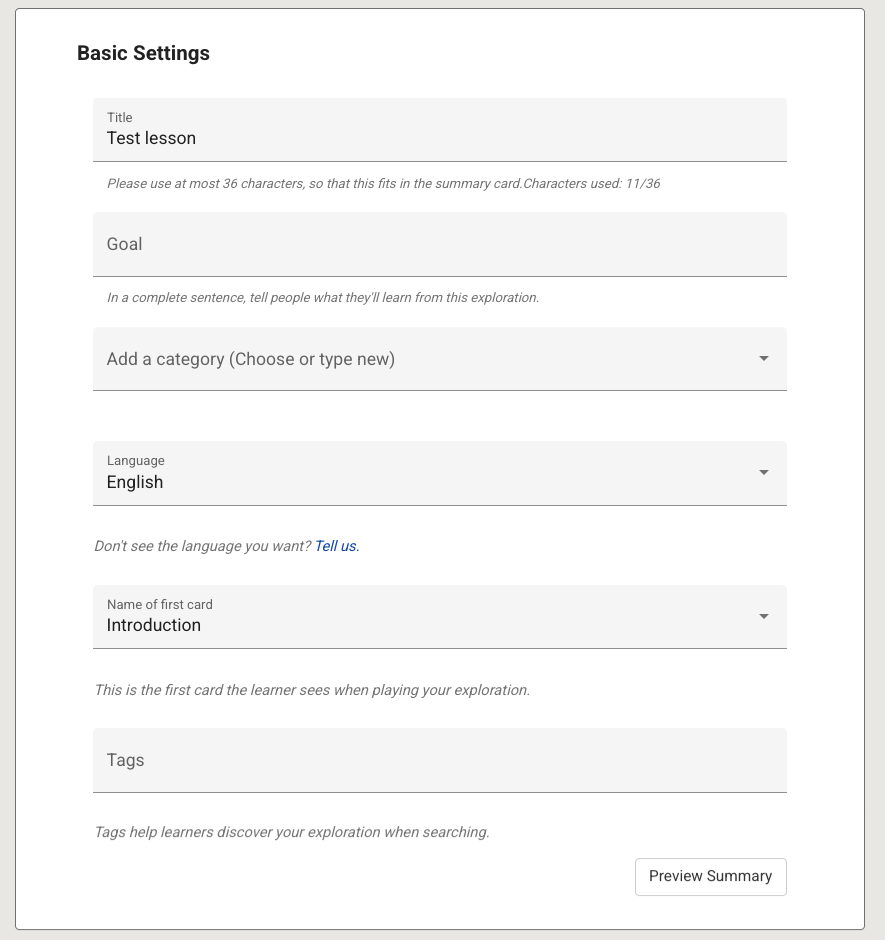
Fig. 1. Basic lesson settings
To see how your exploration will appear to a learner as they search the community library, select Preview Summary. You can see the Title and Goal fields in the preview.
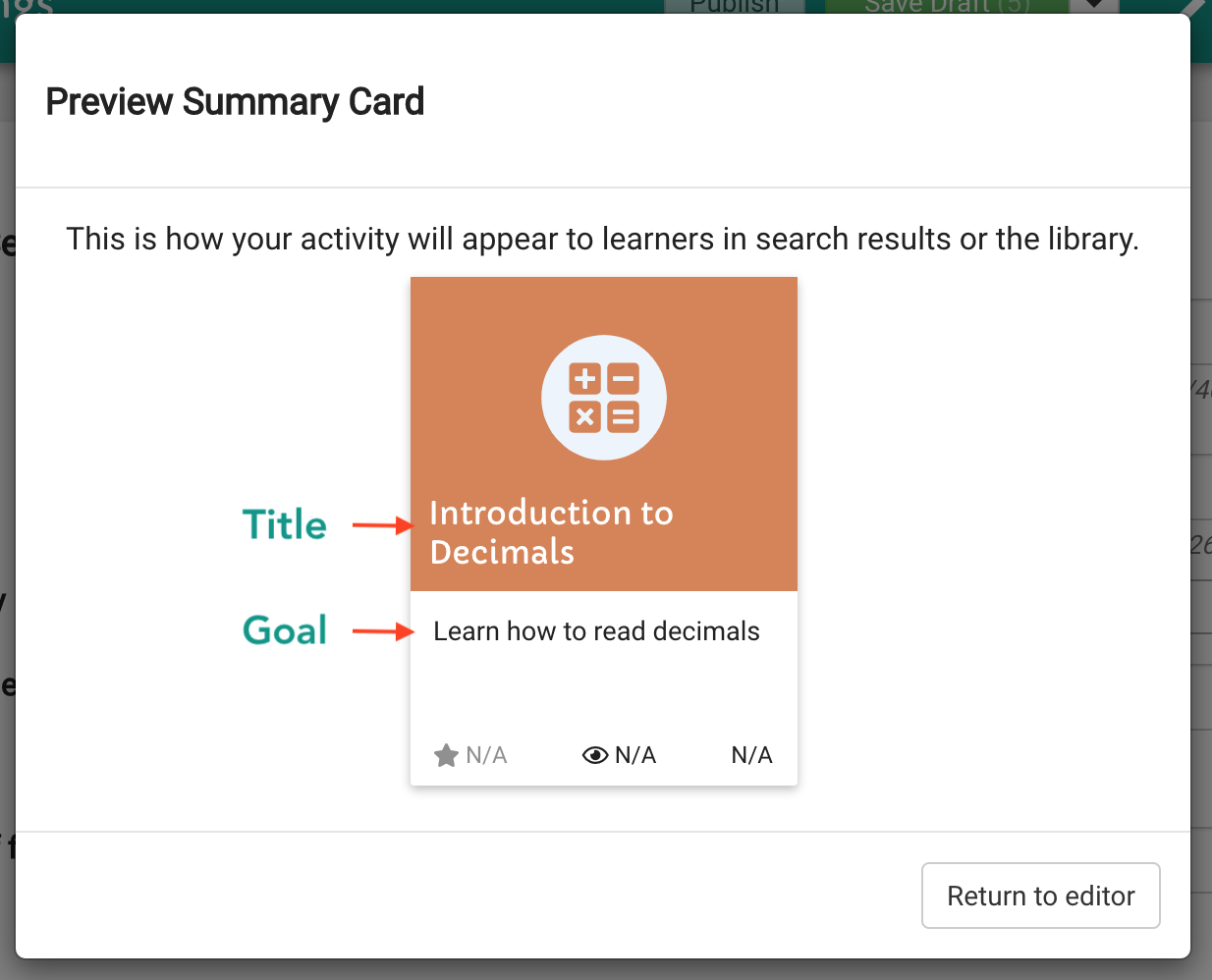
Fig. 2. Summary card