Create a New Skill
Each lesson needs at least one skill. These are the key abilities learners will develop throughout the lesson. Creating a skill provides meaningful benchmarks for the learner and makes it easier to test what they’ve learned.
In this article, you will learn how to:
—
How to Create a Skill
Select your profile picture in the top navigation menu, then select Topic and Skills Dashboard.
From the Topics and Skills Dashboard, select Create New Skill.
In the Create New Skill panel:
Enter a description for the new skill under the New Skill Description text field.
Under Review Material, enter a brief overview of what the skill is and how to use it.
Tip
For example, if the skill is identifying prime numbers, the review material might describe what qualifies a number as prime.
Select Save. This will open the Skill Editor, where you can add more information and refine the skill as needed.
Note
Once you select Save, the skill is created but not published. Use the Skill Editor to expand and refine what you’ve started before publishing.
—
Use the Skill Editor
The Skill Editor consists of five parts designed to help learners understand the skill and help question writers create effective content.
Skill Description
A short description of the skill learners will develop. This appears whenever the skill is referenced.
Review Material
A quick overview of the skill’s use and relevance.
Misconceptions
This section is used to write any misconceptions that learners may have about a skill. Topic managers and admins use these to create targeted feedback for common mistakes.
Rubrics
Brief descriptions of what an easy, medium, or hard question looks like for this skill. This helps question creators maintain consistent difficulty.
—
Write the Concept Card for a Skill
In Oppia, learners interact with a Concept Card when they need extra help. It consists of two sections:
Skill Description: The name/title of the skill.
Review materials: A brief overview of the skill and how to perform it.
Pro-Tip
When writing your concept card, think about what a learner might find confusing and how you would explain the skill to them directly.
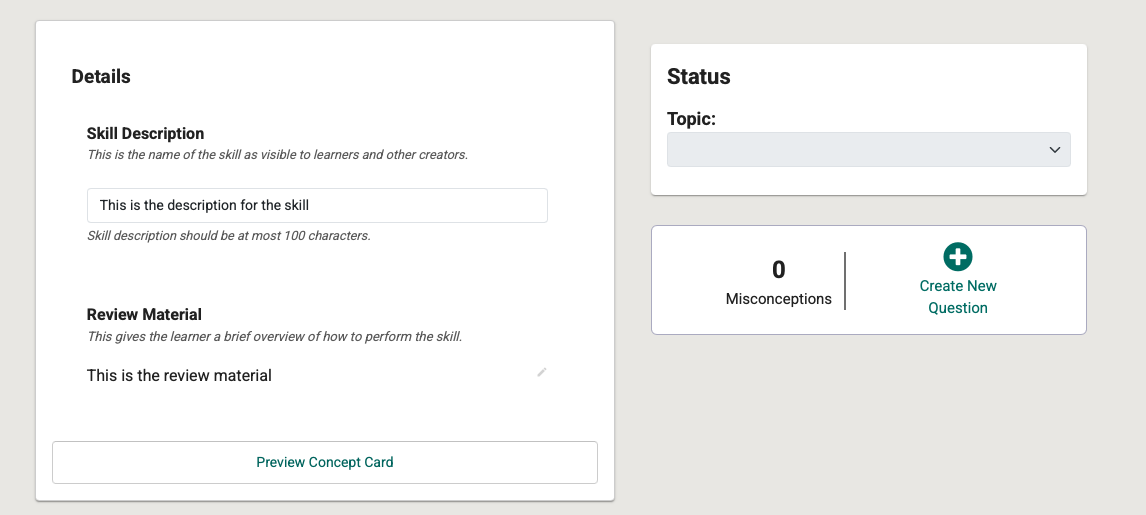
Fig. 1. Elements of a Concept Card
—
Publish Changes to a Skill
After refining the skill in the editor, you must publish it to make it available for use.
To publish changes:
Open the Skill Editor for that skill.
Select Publish Changes in the navigation menu.
In the text field, describe the changes you made.
Select Publish Changes.
Important
You cannot publish a skill until the Skill Description and Review Material fields are completed.
—
Assign a Skill to a Topic
After creation, a skill is not visible to learners until it is assigned to a topic.
In the Topics and Skills Dashboard, find your skill.
Next to the Unassigned label, select the three vertical dots.
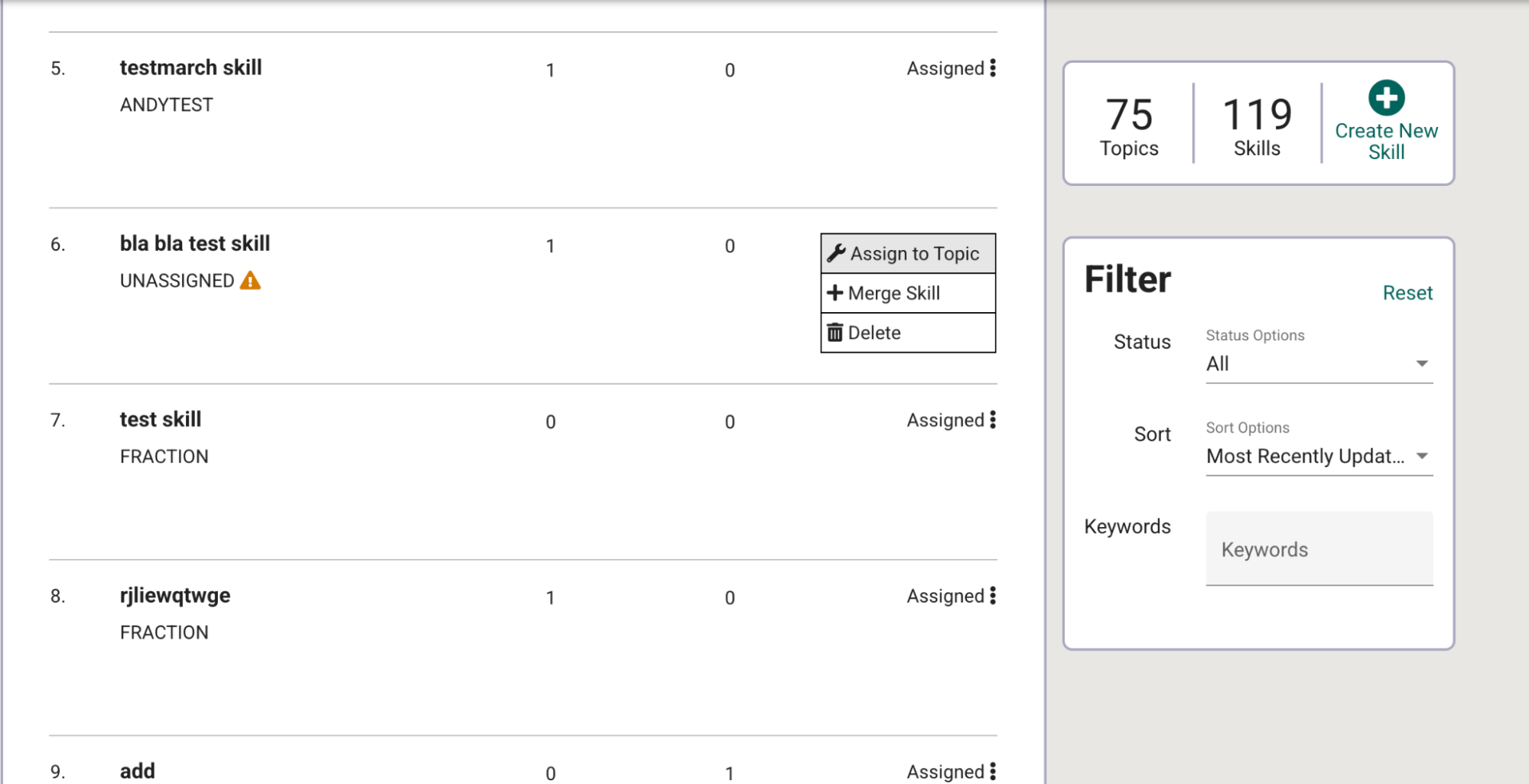
Fig. 2. Skill dropdown menu on the Skills Dashboard
In the dropdown menu, select Assign to topic.
Search for and select the desired topic.
Select Save.
—
Delete a Skill
To delete a skill:
Visit the Topics and Skills Dashboard.
Under the Skills tab, find the skill you want to delete.
Select the three vertical dots to the right of the skill.
Select Delete from the dropdown menu.